
Skills
Extend Foxl with installable skill packages, edit them in the app, or bring yours from Claude Code, Codex or Gemini CLI.
Skills are installable capability packages that extend what Foxl can do. Each skill is a SKILL.md file containing instructions, tool requirements, and domain expertise that the agent loads on demand.
How Skills Work
Skills use a lazy-loading pattern for efficiency:
- Only skill names and short descriptions are included in the system prompt
- When the agent decides a skill is relevant, it reads the full
SKILL.mdfile - The skill's instructions guide the agent through the task
This keeps the agent fast while providing deep expertise when needed.
The skill library is versioned in the foxl-ai/skills repo. A fresh install is seeded into ~/.foxl/skills/ from the copy bundled with the app; after that, launching Foxl only adds skills you do not have yet and never rewrites one you already have. Updates come from the Sync button on the Skills tab (below), which shows you the diff first. You can enable, disable, or customize any skill from that tab, and add your own local skills by dropping a SKILL.md file in the skills directory.
Skill Categories
Document processors, communication skills, and coding helpers all live in one flat directory. The groupings below describe intent, not filesystem layout.
Productivity and documents
| Skill | Default | Description |
|---|---|---|
| github | on | GitHub through the gh CLI: pull requests (view, diff, review, checks), issues, Actions runs and failed logs, releases, search |
| notion | on | Search, read, create and update Notion pages and database rows through the Notion API |
| obsidian | on | Find, read, create and reorganize notes in a local Obsidian vault, on disk or with the official obsidian CLI |
| gws | on | Google Workspace CLI - Gmail, Calendar, Drive, Sheets, Docs, Chat, Tasks, Meet |
| outlook | on | Outlook email, calendar, and Microsoft To-Do via Microsoft Graph API |
| outlook-web | on | Read Outlook mail and calendar in your own Chrome through the Foxl extension, when Microsoft 365 is not connected |
| quip | on | Search, read, create and edit Quip documents and folders through the Quip Automation API. Not listed under Integrations |
| himalaya | off | Read, search, send and file email over IMAP/SMTP with the himalaya v2 CLI, for an account not connected as Microsoft 365 or Google |
| docx | on | Create, read, edit, or manipulate Word (.docx) documents |
| xlsx | on | Read, edit, or produce spreadsheets (.xlsx, .xlsm, .csv, .tsv) |
| pptx | on | Create or edit PowerPoint (.pptx) presentations |
| on | Read, extract, merge, split, watermark, fill, or OCR PDF files |
Media and audio
| Skill | Default | Description |
|---|---|---|
| spotify | off | Control Spotify with the spogo CLI (browser-cookie sign-in, no developer app): search, play, queue, devices, playlists |
| spotify-player | off | Control Spotify with the spotify_player CLI (official Spotify sign-in) |
| sonos | off | Control Sonos speakers with sonoscli: rooms, playback, volume, grouping, favorites, queue |
| voice-call | off | Place a one-way phone call that speaks a message, through your Twilio account; asks before every call. For calls through your iPhone, see Phone calls |
| sherpa-onnx-tts | off | Offline text-to-speech with sherpa-onnx: text to a WAV file on this computer, no cloud |
| video-frames | off | Extract frames, contact sheets or clips from a video with ffmpeg, then look at them |
Agent tooling (built-ins as skills)
These ship as skills so you can toggle them off to reclaim system-prompt tokens on simpler conversations.
| Skill | Default | Description |
|---|---|---|
| browser-tool | on | How to drive the browser tool (Foxl's own profile) and browser_extension (your Chrome, with your sign-ins), see Browser Automation |
| code-search-tool | on | Search file contents with the code_search tool (ripgrep, or grep when rg is missing) |
| exec-tool | on | Run shell commands with exec and manage background jobs with process |
| git-tool | on | Git through the shell: status, diff, log, blame, branches, commits, stash, pull and push |
| web-fetch-tool | on | Fetch a public URL with web_fetch (GET: HTML, text or JSON); the browser tool covers pages that need JavaScript |
Coding assistants
| Skill | Default | Description |
|---|---|---|
| claude-code | off | Hand coding tasks to Claude Code on this computer as background sessions, then ask how they are going, answer their questions or stop them, including from your phone |
| codex-cli | off | Hand coding tasks to the Codex CLI on this computer as background runs, then follow up, check progress or stop them |
| gemini-cli | off | Set up and troubleshoot the Gemini CLI model provider (your own Gemini key or Google account) |
| gemini | off | Ask the Gemini CLI a one-shot question for a second opinion or a long-context read |
| coding-agent | off | Run OpenCode, Pi or another terminal coding agent (Claude Code and Codex have their own skills) |
| electron | off | Automate an Electron app (Slack, VS Code, Discord, Figma and similar) through a DevTools port and the browser tool |
| skill-creator | on | Write a new Foxl skill or improve one: draft the SKILL.md, validate it, test it and tighten its description |
Sync on the Skills tab brings an updated claude-code skill. A follow-up you send to a
Claude Code session goes into that same session, even while it is busy, instead of stopping it
and starting it again, and the same request is never sent twice. Before sending, the skill checks
that your installed Claude Code can take the reply safely and refuses when it cannot. On Windows
the skill does not send follow-ups: reply to a session from claude agents there.
Research and automation
| Skill | Default | Description |
|---|---|---|
| research-assistant | on | Multi-source research with cited findings: search, read primary sources, cross-check claims, write a sourced summary |
| autoresearch | off | Set up and run karpathy/autoresearch, an agent loop that edits train.py, trains for 5 minutes and keeps what lowers val_bpb |
| tmux | off | Drive interactive programs in tmux sessions that outlive Foxl; the terminal tool covers everything else |
Utility
| Skill | Default | Description |
|---|---|---|
| weather | on | Current weather and forecasts from wttr.in and Open-Meteo, no API key |
| healthcheck | off | Read-only security check of this computer (disk encryption, firewall, updates, remote access, open ports, backups), then a plan you approve step by step |
Browsing and Installing Skills
Skills live under Settings > Tools > Skills. That row and its neighbours in Settings > Connect answer different questions:
| Where | What is on it |
|---|---|
| Integrations row | The third-party services worth connecting first, as cards - the sign-in integrations (Microsoft 365, Slack, and Gmail, which only sends) and the SaaS-shaped skills (github, notion, obsidian, gws, weather, outlook, outlook-web, himalaya, spotify, spotify-player, sonos, voice-call) |
| Skills row | The full catalog - every skill shipped with Foxl plus anything you added locally |
| Messages row | The inbound bots (Telegram, Slack, iMessage and the others) - see Messages |
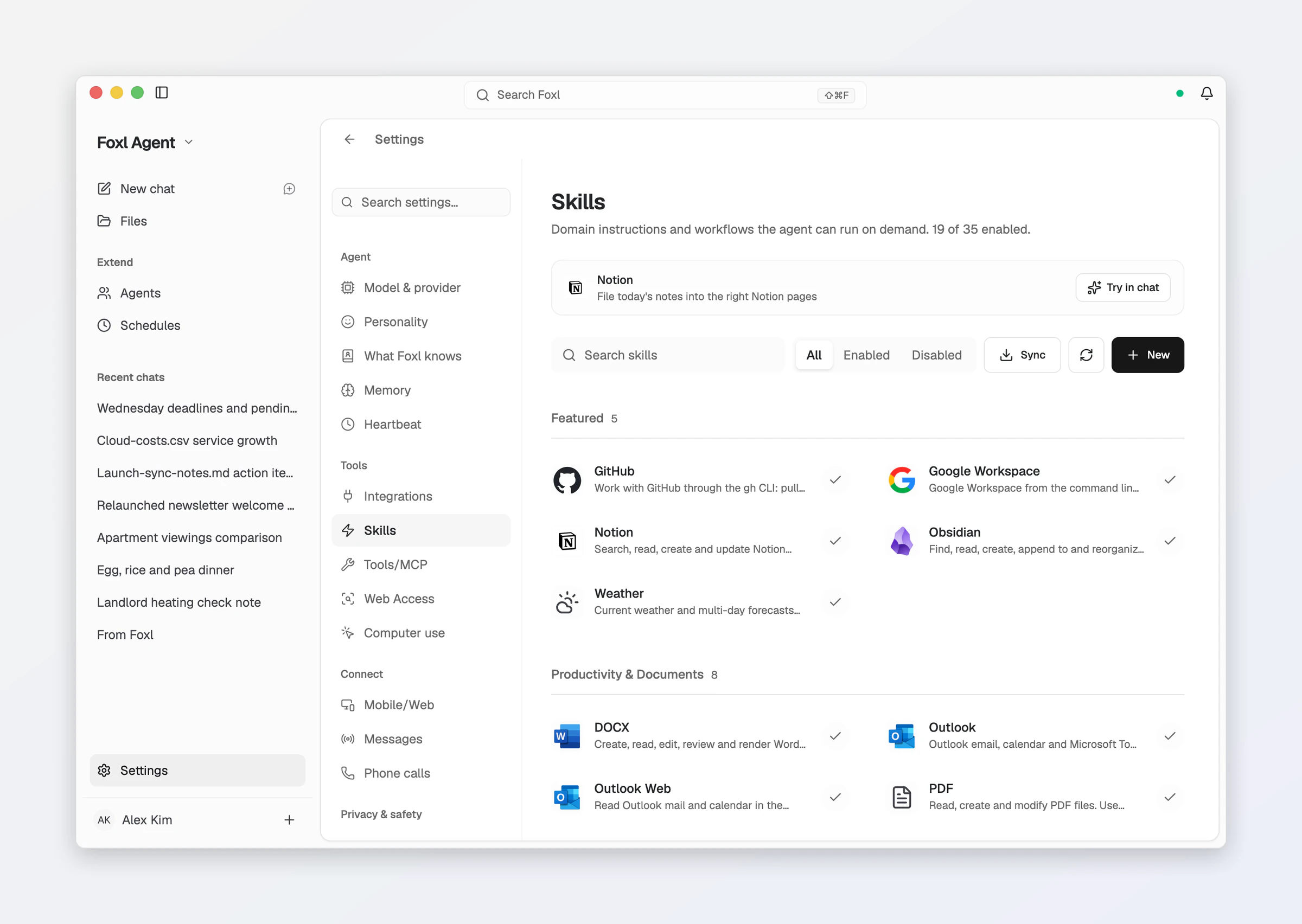
Each skill row on the Skills tab shows:
- Name and description
- Enable / disable toggle (flips the default above). Your choice is kept in
~/.foxl/data/skills-settings.json, not written into the skill file, so syncing a newer version of the skill never undoes it - Required tools, binaries, or credentials
- Stored environment variables (API keys), editable in place
/skills, /shared and /channels remain real URLs, so an existing link or bookmark still opens the right tab.
In a language other than English, a skill whose name says what it does (Browser, Voice Call, Weather, Email (IMAP/SMTP) and the like) is named in that language on Skills and Integrations, and so are the sample requests under Try in chat, which then sends the request in that language. Products keep their own names (GitHub, Spotify, Claude Code).
Some skills require external tools. For example, spotify-player needs the spotify_player binary on PATH, and sherpa-onnx-tts needs the sherpa-onnx-offline-tts program its setup step installs. The Skills tab shows compatibility status per skill and flags missing dependencies inline.
A missing binary or API key does not hide the skill - it is still offered to the agent, with the install step in its own body. So a skill can be available and not yet runnable, which is why the requirement is shown on the row.
Updating skills is a two-step, reversible operation. Syncing from foxl-ai/skills lists the skills that changed first, one row per skill with a checkbox, all ticked to start; tap a skill to see its files and their diff. Nothing is written until you confirm, and Update 3 of 5 (for example) updates only the ticked skills, so you can leave others for later. Applying snapshots each skill it updates first, so Undo reverts exactly those. Sync also says so when everything is already up to date. Skills you wrote yourself are never touched - sync only considers skills that exist in the repo.
A skill asks for its key in the chat
When a skill Foxl is using in a chat needs a key that is not set yet, Foxl shows the key card ((name) key) right in the chat, on your computer or your phone, instead of sending you to Integrations to paste it. The key is saved on your computer and given only to the commands Foxl runs in a chat that uses a skill needing it, and is hidden from what those commands print; Foxl's AI does not see what you type. A key you pasted on the Integrations page keeps working, and you can still change or clear it there.
Adding a skill: review it first
New on the Skills tab opens Review skill, where you see a skill before it is installed.
Give it a Link or repository (a GitHub repository, folder or SKILL.md link, a skills.sh
link, owner/repository, or a direct https link to a Markdown file), or use Paste or file
to paste a SKILL.md or Open a SKILL.md file. When a repository holds several skills, you
choose one.
The review shows the skill's instructions, its Declared requirements (programs, environment variables and integrations), its license and every included file, before Install. Reading a skill for review runs nothing from it: no installer, no script, no package, and only public https addresses are fetched. If a skill with the same name is already installed, choose Replace the existing skill (the review lists the files that replacing would remove) or Keep both under a new name. Cancelling leaves your skills as they were. A SKILL.md can be up to 256 KB, and a skill folder up to 8 MB with at most 100 files.
Making a skill from a chat
When a chat has worked out a workflow you will want again, ask Foxl to turn it into a skill
("make this a skill"). You can also point it at a SKILL.md or a skill's link. Foxl shows you
the skill's full instructions and included files in the chat and saves it, with Undo on the
card under its reply (a new skill is removed, a replaced one comes back). When its name already
exists, it asks you to choose Replace or Keep both first. When the skill is enabled and its
requirements are met, it appears in the same chat's / menu and can be used in new chats.
It is available in your own chats answered by your computer with a supported cloud model. With a Claude Pro/Max sign-in or the on-device model, use New on the Skills tab instead.
When Foxl saves a job as a skill
When a job took several steps - their order, where the numbers come from, the checks - and you will ask for it again, because you said so or it comes back every week, Foxl saves that method, done your way, as a skill on your computer, without asking. It does so even when the chat read a web page, a mail or a tool's output first, with two exceptions that keep text hidden in what Foxl read from leaving a standing instruction behind: a skill that names a web address, an email address or a phone number you did not write in the chat yourself waits for your tap on Apply under the reply, and in your own channel thread Foxl does not save it after such a read, it tells you what it would save. The reply ends with Saved as skill and the skill's name, with Undo:
- Undo removes the skill at once. It is then listed under Recently deleted on the Skills page, and Redo on the same line, or Restore there, brings it back.
- When a skill you already have covers the job, Foxl follows it, and when you correct it, Foxl updates that skill instead of saving a second one.
- A job you say is a one-off is not saved. A preference or a fact you tell Foxl ("I'm vegetarian") is kept as a memory, not as a skill, and a fix to one answer ("it's Tuesday, not Monday") is not saved at all.
- With Settings > Safety > Ask before Foxl changes its own instructions on, the skill waits for your tap on Apply under the reply instead.
- The same correction is saved once. When a skill with that name already exists, the new one is
saved beside it under a numbered name (
Weekly report 2); nothing is replaced. - From your own Telegram, iMessage, Slack or Discord thread, the reply says it was saved in one line, and replying "undo" removes it.
Like any skill, it is a SKILL.md you can open, edit or delete on the Skills page, and new chats
use it when the task comes up. It works in the same chats as making a skill from a chat, and not in
a temporary chat, which keeps nothing.
Editing a skill in the app
Edit in a skill's details opens its SKILL.md in the same editor as Files, in the
desktop app, and on app.foxl.ai or the phone app while they are connected to your desktop.
- A line under the editor says whether the front matter is complete - the
---block at the top with aname:and adescription:line - and Save stays off until it is. - A rename that would change the skill's id is refused, since its on/off setting and mentions use that id. Keep the name, or create a new skill with the content.
- If
SKILL.mdchanged on disk after you opened it, Save leaves the file as it is and says so; Save again replaces it with your version. SKILL.mdcan be up to 256 KB.
Taking back an edit or a delete
Each time you save an edit to a skill, delete it, or choose Replace the existing skill for an import, Foxl first keeps what that change replaces, with the skill's on/off setting. History in a skill's details lists these versions, newest first, with when each was kept and its size, and Restore puts one back right away, on/off setting included:
- An edit or a delete keeps the skill's
SKILL.md, the only file it changes. Deleting a skill you did not import removes itsSKILL.mdand leaves its other files in its folder, so Restore puts theSKILL.mdback beside them. - Deleting a skill you imported, or replacing a skill with an import, keeps its whole folder, and Restore brings that folder back as it was, other files included.
The version a Restore replaces is kept too, so you can take a Restore back the same way.
After Delete, the message that appears has Undo. Later, the skill is listed under Recently deleted at the end of the Skills page, where Restore brings it back.
Foxl keeps the newest 10 versions of each skill, and up to 64 MB of versions in all, removing
the oldest first. They are stored on your computer in ~/.foxl/data/skill-versions/. On your
phone and app.foxl.ai, History, Undo and Recently deleted appear once Foxl on your computer is
up to date.
Bringing skills over from Claude Code, Codex or Gemini CLI
Settings > Advanced > Import and export brings your setup over from Claude Code, Codex or Gemini CLI on the same computer:
| Row | What it brings |
|---|---|
| Import from Claude Code | Your CLAUDE.md, your skills from ~/.claude/skills, your MCP servers from ~/.claude.json and your agents from ~/.claude/agents |
| Import from Codex | Your AGENTS.md, MCP servers and agents from ~/.codex (its config.toml and agents folder), and your skills from ~/.agents/skills |
| Import from Gemini CLI | Your GEMINI.md, your skills from ~/.gemini/skills, your MCP servers from ~/.gemini/settings.json and your agents from ~/.gemini/agents |
Preview lists everything first, ticked, and marks what Foxl already has, which is left
as it is, so nothing you have is replaced; untick anything you do not want. Instructions are
added to the end of Foxl's AGENTS.md; Gemini CLI's GEMINI.md also holds what you asked
Gemini CLI to remember, which comes along with it.
Each agent becomes one of Foxl's sub-agents, with its instructions,
its model and the tools its file names, translated to Foxl's tools. A limit in the file stays a
limit: an agent that may not write files, or may not use the shell, gets no tool that does.
When Foxl already has a different agent of the same name, such as its own code-reviewer,
yours comes along beside it as code-reviewer-claude-code (or -codex, -gemini). Anything
that does not carry over, like a model Foxl does not offer, is named under the agent before you
import it.
First-run setup offers the same list, on a Bring your setup screen, when it finds a
Claude Code, Codex or Gemini CLI setup with something Foxl does not have yet.
Creating Custom Skills
Create your own skill by adding a SKILL.md file:
~/.foxl/skills/my-skill/SKILL.mdThe file uses YAML frontmatter for metadata and markdown for instructions:
---
name: my-skill
description: Short description of what this skill does
enabled: true
requires:
  env: [MY_SERVICE_API_KEY]
  bins: [my-cli]
---

## Instructions

Tell the agent how to use this skill...
requires.env entries become editable in the UI, so API keys are managed there rather than in shell profiles - and a value you store that way satisfies the requirement even if the variable is not in your shell. When a variable's name says it is a key (it ends in _KEY, _TOKEN, _SECRET or _PASSWORD, for example), a chat that uses the skill asks for a missing one with the key card. requires.bins get a PATH check at load time, with inline setup hints when a binary is missing. The agent will discover your skill automatically on next conversation.
The enabled line is only the starting value - switching the skill on or off in the app is recorded in skills-settings.json and outranks it.