
Morning Briefing and Check-ins
A weekday morning brief and a daily check-in from Foxl when something needs you, or your own schedule.
Foxl can tell you first, instead of waiting for you to ask. There are two ways, and both run on your computer:
- Morning briefing and Check-ins, two switches that are off until you turn them on. The briefing comes on weekdays, a check-in once a day, and both write to you in the From Foxl chat only when something needs you.
- A briefing of your own: a schedule you write, with the sources and the format you want (below).
Turning them on
On the first run of the desktop app, one screen, Let Foxl tell you first, offers both together: a morning brief on weekdays at 08:30 and one check-in at 15:00, posted in your From Foxl chat with a notification, only when something needs you. It says what they look at, what they cost and that your computer has to be on and awake. Choose Turn on or Not now; Not now is remembered, and Foxl does not offer it again by itself.
Later, both are in Settings > Heartbeat, above the Feed Generator: Morning briefing, with its Briefing time (08:30 unless you change it, from 05:00 to 11:30), and Check-ins. On a phone or app.foxl.ai the same switches work while an up-to-date Foxl on your computer is connected.
Each switch is an ordinary schedule on the Schedules page: the briefing is the pre-made Morning Briefing row, and the check-ins are a Check-ins row. Change a time or what it looks at there and see its runs. Settings > Usage counts what briefings and schedules used together, as Outside a chat in its Chats view. In Runs, a brief or a check-in that had nothing to tell you reads Nothing new to brief you on or Nothing new since the last check-in. Switching one off switches its row off; a row you deleted is not made again until you turn its switch back on.
The morning briefing
On weekdays at your briefing time, Foxl posts one message in the From Foxl chat whose bullets name each thing with its status (needs you, in progress, done); on a phone each status is a small pill. Its notification greets you by your first name and says how many things are in progress and how many need you, for example "Morning, Maya. 5 things in progress and 2 that need you.", and opens the From Foxl chat there.
It reads your workspace memory, your recent chats, your notes and files on this computer, the mail and calendar of a connected Microsoft 365 account, your Gmail when it is connected with reading on, and every mailbox you saved an app password for when Foxl asked in a chat (Naver, Daum, Kakao, iCloud, Gmail, Yahoo and the other mail services Foxl reads). It keeps a notice with a date you can still act on: points or coupons about to expire, an order to confirm, a return window, bill or renewal closing, and every new sign-in to your accounts. Newsletters and plain promotions are left out. With a Claude Pro or Max sign-in it reads what Foxl remembers about you and the titles of your recent chats, but not the chats themselves, your notes, your mail or your calendar; to have it read those, choose another model for the Morning Briefing schedule on the Schedules page.
Check-ins
Check-ins run once a day at 15:00 while your computer is awake. Each one first looks, on your computer, for new unread mail in a connected Outlook account, a Gmail connection with reading on or a mailbox with a saved app password, and for agent runs that ended since the last check-in. With nothing new it stops there: no model call, nothing posted, no notification. Only when it finds something does it ask your model whether any of it needs you, and it posts and notifies only when something does. A Gmail connection made for sending only is never read.
A check-in also posts, without asking the model:
- Your finished Foxl Code tasks. Each task you handed off whose run finished since the last check-in gets one message in the From Foxl chat, under the task's name (tap it to open the task), in the coding agent's own words or saying where the task stands (ready to merge, a check is failing, the plan is ready for you, stopped before it finished). These send no extra notification: you got one when the task finished.
- What still waits for you. A step in your chats, a schedule's run or a check-in's run that waits for your OK, and a sign-in card you answered with Not now, are named in the From Foxl chat ("Still waiting for your OK: run a command in storefront").
Tell Foxl in a chat when to check in: "check in twice a day", "not before 9" or "pause check-ins until Monday" changes when they run (up to eight times a day), and Foxl answers with the new times in your time zone. Setting times also turns check-ins on. Settings > Heartbeat shows the times and a pause, and so does the Check-ins row on the Schedules page ("Paused until Fri, Oct 30"; on a phone, under the row): its next run is the first one after the pause, and the calendar shows no check-in inside it. Only your own chats can change them, and not on a Claude Pro/Max or Gemini CLI sign-in or the on-device model. To change what the check-ins cover, edit the Check-ins row on the Schedules page; Foxl points you there when you ask it in a chat.
What they do and do not do
- They read, and at most draft. A check-in and the briefing look at your mail and at what is on this computer. They never browse or fetch a web page, run commands, write files or change schedules. With Microsoft 365 connected, the briefing saves each reply it proposes as a draft in that email's own conversation in Outlook, and shows them under the briefing as one card to review: Edit, Not now (the draft stays in Outlook Drafts) or Send (sends exactly that draft, once). It never sends one by itself, and anything they would send asks you first; when you are away it waits for your OK in that run for 12 hours, and the next check-in names it. With a Claude Pro or Max sign-in there is no card.
- They say what matters. Each item says why it matters now, where it came from, a deadline only when the source gives one, and what Foxl can do next ("I can draft the reply"). They skip what they already told you and what you asked them to drop, and send nothing at all when nothing is worth saying, except that the first one after you turn them on says in a line or two what it will keep an eye on.
- They need your computer. A time your computer sleeps through is skipped, not run late.
- They use your model. A run that reaches the model is billed by your provider like any chat; a check-in that found nothing new makes no model call.
On the desktop, Settings > Notifications > Schedules > Briefing and Check-ins (on by default) lets them notify you while other finished schedules stay quiet. On a phone they arrive as Scheduled tasks pushes (see Notifications).
A briefing of your own
For a briefing with other sources (the weather, Slack, news, a web page) or another format, write a schedule of your own. Every morning at your chosen time, a briefing like that can:
- Check your email - Outlook through the Microsoft 365 integration or the Chrome extension, Gmail through the gws skill or your logged-in Chrome tab
- Review your calendar for today's meetings
- Summarize important messages from Slack or Teams
- Check the weather for your location
- Post the briefing in the From Foxl chat (on a phone, under the schedule's name), where you can reply to it; with the phone app set up you also get a push that opens it there, and the full run stays on the Schedules page. A schedule of your own notifies on the desktop like any other: on a new install its banner for a finished run is off until you turn on Task Completed under Schedules in Settings > Notifications (see Notifications)
Quick setup
Just tell the agent:
"Set up a morning briefing for me at 7am. Check my Gmail, Google Calendar, and give me the weather for Seoul."
The agent will:
- Create a cron schedule (
0 7 * * *) - Configure the briefing sources
- Start delivering briefings the next morning
Manual setup
- Open the Schedules page in the sidebar and choose Create Schedule
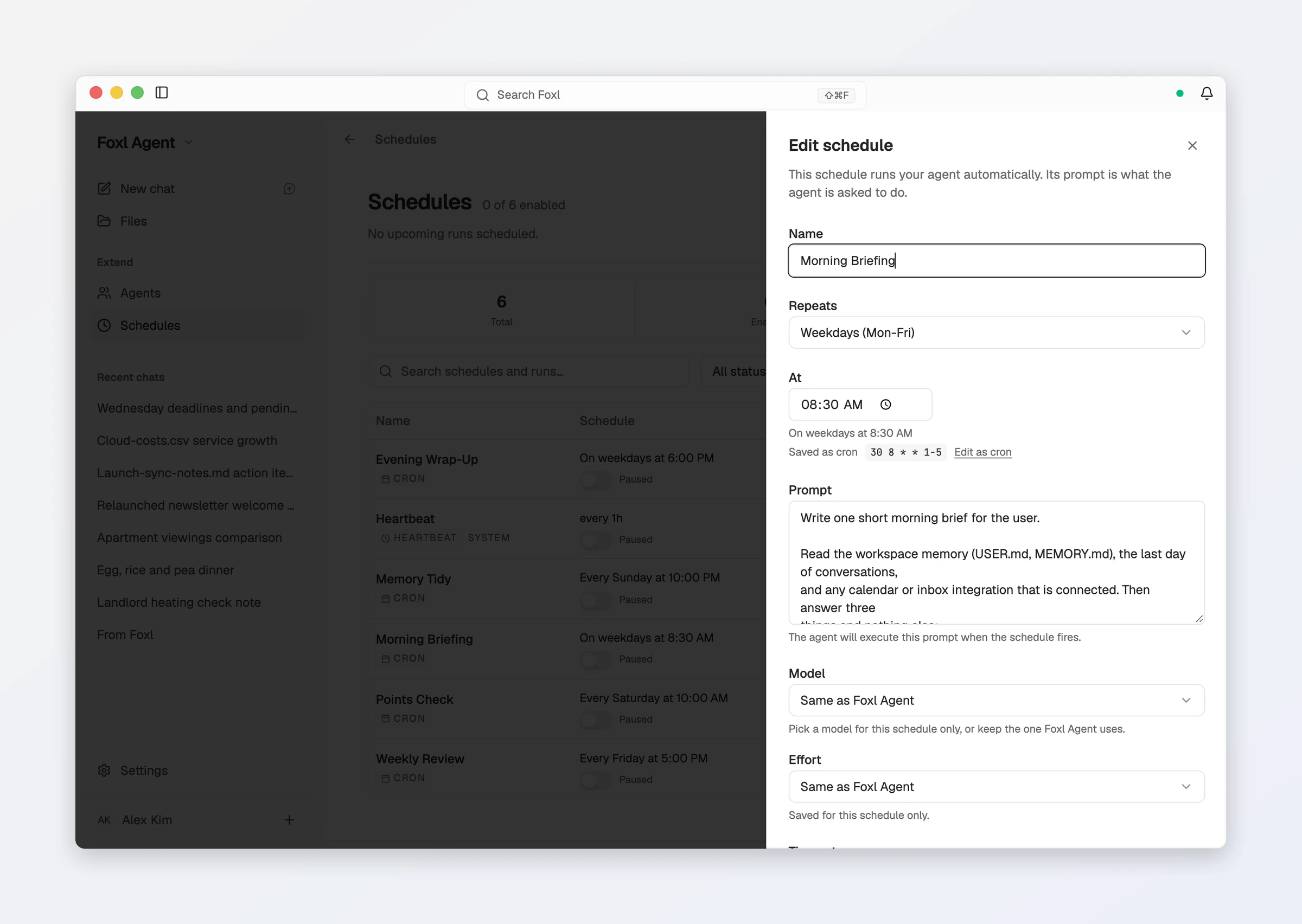
- Keep the type Cron, set Repeats to Every day (or Weekdays (Mon-Fri)) and the time to 7:00 - the editor shows the cron it saves,
0 7 * * * - Enter the task prompt describing what to check
- Optionally pick a cheaper Model for this schedule only (see What a briefing costs), and turn on Run if missed
The pre-made schedule
Schedules ships with a Morning Briefing row already written, switched off and named in your language the first time you open Schedules: weekdays at 08:30, capped at ten minutes, reading your workspace memory, the last day of conversations and whichever calendar or inbox you have connected. It is the row the Morning briefing switch turns on, so switching it on from the Schedules page gives you the morning briefing above, with its reading-only tools. If you delete it, Start from a pre-made schedule under the list brings it back, and so does turning the switch on.
Prerequisites
For a briefing of your own, you need:
- Desktop app running, or Keep running when closed switched on - schedules execute on your computer
- One route into your mail and calendar - any of: the Chrome Extension with Gmail or Outlook open and signed in, the gws skill (
gws auth setuponce), or Microsoft 365 connected under Settings > Tools > Integrations. Gmail connected there can email you the briefing, and reads your inbox only when you connected it with reading on - Turn on Run if missed on the schedule if your laptop is often asleep at briefing time - Foxl then runs it once when the machine comes back. Settings > General > Keep this computer awake keeps it from going to sleep on its own while Foxl runs (see Background service)
With the Chrome Extension, the briefing reads the accounts you are already logged into in Chrome - no extra OAuth or API key. The gws and Microsoft 365 routes each need a one-time sign-in and then work without Chrome open.
Customization
You can customize the briefing to include any combination of:
- Email summary (unread count, important senders, action items)
- Calendar events (today's meetings with times and attendees)
- Weather forecast
- News headlines (from specific sources)
- Git repository activity
- Service health checks
- Custom data from any website you're logged into
Tell the agent what you want changed:
"Add my GitHub notifications to the morning briefing" "Skip the weather, add Hacker News top 5 instead" "Change the briefing time to 6:30am"
Example output
Good morning! Here's your briefing for Monday, March 17, 2026:

EMAIL (3 unread)
- [Priority] Project deadline moved to Friday - from team-lead@example.com
- Meeting notes from last week's sprint review
- Newsletter from TechCrunch

CALENDAR (2 events today)
- 10:00 AM - Team standup (30 min, Google Meet)
- 2:00 PM - Client demo with Acme Corp (1 hr, Zoom)

WEATHER
- Seoul: 12C, partly cloudy, high of 18C

GITHUB
- 2 PRs awaiting your review
- CI passed on main branch
What a briefing costs
A briefing is several conversation turns - reading email, checking the calendar, composing the summary - so it is the most expensive thing on a schedule. Because you supply the model, that cost lands on your provider bill, and on a local model it is free. What drives it:
- Which model you picked (a fast, cheap model is usually plenty for a digest)
- How much content the agent reads (long email threads are the bulk of it)
- How many tool calls the briefing makes
- Whether thinking is on - see Thinking and cost
A daily briefing on an expensive reasoning model is the one schedule worth pointing at a cheaper one: Model in the schedule's editor runs that schedule alone on another model, while chat keeps yours. See Cost & model access.