
Browser Automation
Let the agent work in your real Chrome with your logins, or in its own automation browser
Foxl's agent can work in a browser two ways: in your real Chrome through the Foxl extension, with all your logged-in sessions intact, or in a separate automation browser with its own profile.
Why This Matters
A browser that only reaches the public web cannot see your logged-in accounts. Through the Chrome extension, Foxl works in your real Chrome, which means it can:
- Read your Gmail or Outlook inbox
- Check your Amazon order status
- Navigate your company's internal tools
- Fill out forms on sites where you're logged in
- Extract data from authenticated dashboards
Two Browser Tools
Which one Foxl uses
While the Foxl extension is connected, Foxl opens pages in your own Chrome first, where you are already signed in (a plain page or an API is still read with web fetch first). When a page there asks you to sign in or for a verification code, Foxl asks you to do it in that tab. Foxl's own browser takes a page wherever that is what gets the task done:
- a page the extension could not work in that chat, such as a booking or sign-in step shown in a frame from another site;
- a site Foxl has a saved sign-in for, which it then signs in to by itself;
- when you ask for Foxl's browser;
- every page while the extension is not connected, when you sent the message from your phone or app.foxl.ai, when you have not used your Mac for two minutes, for a scheduled task while Foxl cannot tell that you are at your computer (on Windows and Linux it cannot), and while a watch that checks its page in Foxl's browser waits for you to sign in. A sign-in or a code then comes to you as a card, on your phone too (see Sign-ins and saved keys).
A chat that is already open picks up the extension when it connects, and leaves it when it disconnects, from its next message.
browser (agent-browser)
A separate automation browser, driven through the agent-browser CLI (Rust +
Playwright). It uses its own Foxl profile under ~/.foxl/browser-profile, kept
apart from your personal Chrome, and a login you make in it persists between runs.
The agent sends it agent-browser commands:
| Command | What it does |
|---|---|
| open URL | Navigate to a page |
| snapshot -i | List the interactive elements with short refs (@e1, @e2) |
| click @ref | Click an element |
| fill @ref "text" | Type into an input |
| wait --load networkidle | Wait for the page to settle |
| screenshot | Capture the page |
| close | End the session |
It needs a Chrome that agent-browser can start (on Windows, Google Chrome or Brave), and
nothing else: agent-browser itself ships inside Foxl, one pinned release (0.41.2, never
"latest"), so nothing is downloaded on first use and a new agent-browser reaches you only
through a Foxl update. It runs in
its own Foxl session, apart from any other program that uses agent-browser, and saves
screenshots under ~/.foxl/data/screenshots. Each browser command leaves one line in
Settings > Logs saying which command ran and how it ended, without the text it typed.
The window is hidden by default. Turn on Show browser window in Settings > Web Access to watch it work, or to sign in to a site yourself in its profile; the next browser command opens the window. x.com is the exception: it refuses a hidden browser, so once you save your X sign-in in Foxl, Foxl's browser opens x.com in a window you can see on your computer, even with Show browser window off. Every other site still runs hidden.
When a step is yours
When the page needs you - a CAPTCHA or "are you human" check, a sign-in you would rather type yourself - the agent hands you the page and waits. (Any other sign-in is asked for in a Sign in to card and kept in a vault on your computer; see Sign-ins and saved keys.) A Foxl's browser card appears in the chat with Open browser and Not now. Tap I'm done and the agent continues from the page as you left it. While you have the page, no other run uses that browser. The page is laid out for the screen you open it on, as a browser lays out a page for its window, and the agent's own page size comes back when you are done. If the page moves to another site, a store's checkout handing you to its payment page for example, it stays on screen, and a line under the address says which site it is on now. To have Foxl stop on the new site until you choose to continue there or tap Go back, turn on Settings > Safety > Pause my take-over when a page moves to another site; an address you type yourself opens at once either way. With the filter in Settings > Web Access on, a site on its blocked list is never shown: tap Go back or I'm done.
- On a computer it opens beside the chat, with a browser's toolbar: the close button (X), Back, Forward, the page's address (click it to type another one, then press Enter), Reload and I'm done. Drag the panel's edge to make it wider or narrower. The chat stays usable next to it. In the page, click, right-click, drag, hover and scroll with your mouse, and type with your own keyboard (Korean and other composed input, Tab, Enter, the arrows, select all, undo and paste included).
- On a phone it opens full screen, laid out for the phone, with the address at the top (tap it to type another one, Reload beside it) and Back, Forward, Keyboard, Paste, Zoom and I'm done at the bottom. A tap clicks where your finger is. A drag scrolls the page under it, inside scrolling boxes too, without clicking the link you started on. Holding and then moving drags, for sliders and maps, and holding and letting go is a right click, as is a two-finger tap. A two-finger pinch zooms and pans your view of the page, not the page itself; Zoom and Fit do the same with one tap. Keyboard opens your phone's own keyboard (Korean and other composed input included) and Hide keyboard puts it away. Paste opens a box for your phone's own Paste: tap the box on an iPhone, or touch and hold it on Android, then tap Paste, and the text goes to the page.
The card stays in the chat for as long as Foxl waits, also after a reload, when you reopen the phone app, or in another window or on your phone. Closing the browser with the close button (X) keeps the request, so Open browser works again at once. If the screen that had the browser goes away (the phone app went to the background, for example) and does not come back within about five minutes, Foxl stops waiting and carries on with what it can do without that step.
From a phone it opens only on a phone set up to approve on your computer (the set-up that computer-use approvals use). The card waits up to 10 minutes for you to open it, and 20 minutes in all. Only your own chats hand a page over: a schedule or a channel run says what the page needs instead.
A screenshot the agent takes, with either browser tool, appears as a picture in its tool
step in the chat (in a finished reply, open its steps to see it); click it to see it full
size. The agent sees the same screenshot in that step, so checking how a page looks takes no
second step. When the agent opens a page on your own computer, such as a dev server it
started on localhost:5173, its step offers Open preview, which opens that page in your
browser. It appears in the desktop app and in a browser on the same computer, not on your
phone or on app.foxl.ai, where localhost would be a different device.
Best for: work while the extension is not connected or cannot do the page, sites you sign in to through a Sign in to card, and anything that should stay out of your personal browser.
browser_extension (Chrome Extension)
Enhanced control of your actual Chrome browser:
| Action | Description |
|---|---|
| Tab management | Open, close, switch, and group tabs |
| Navigate | Open a URL in the focused tab |
| Snapshot | A compact accessibility snapshot - the visible text and the controls, with short refs |
| Click and type | Interact with your real Chrome tabs. Typing is read back, and the agent is told when the text did not go in |
| Select | Pick an option in a dropdown |
| Click at a point | Click a spot on the page that has no element of its own |
| Press a key | Enter, Escape, Tab, the arrows, or a combination such as Control+a |
| Hover | Move over an element or a point, for menus that open on hover |
| Scroll | Navigate long pages |
| Screenshot | Capture the visible area; with extension 0.9.0, also a tab in the background, a region or the whole page |
Best for: every page while it is connected, and above all tasks that need your login sessions - email, dashboards, authenticated sites.
Opening a page or tab, closing a tab, clicking (on an element or at a point), typing,
pressing a key and choosing an option ask first unless auto-approve is on (sending money or
trading always asks, and a purchase asks only if you turn that on; see Security); reading the page, listing tabs,
scrolling and hovering do not. The agent refers to page elements by the names
the extension gives them (ref_12); a name from the other browser tool (@e12) is refused
and the agent takes a fresh look at the page instead. When a click, typing or a choice fails,
for example because the element is gone, the agent is told so with the extension's reason.
Screenshots from the extension are saved in ~/.foxl/data/screenshots too.
The typing read-back, clicking at a point, pressing a key and hovering need extension 0.8.0 or newer and Foxl desktop 0.8.1 or newer. With an older extension, the agent is told the last three are not available and uses clicks and typing instead. The extension's clicks and key presses are events sent to the page, not your real mouse and keyboard, so a site that checks whether input came from a person ignores them. See Chrome Extension for the details.
Extension 0.9.0 adds three things:
- Screenshots of a tab in the background, without switching to it, so your window stays where it is. The extension does this by itself, with any Foxl desktop.
- Region and whole-page screenshots: a rectangle of the visible area, or the whole page down to its end. They need extension 0.9.0 and Foxl desktop 0.9.3 or newer. With an older extension the agent is told which version it needs and uses a screenshot of the visible area or the snapshot instead.
- Snapshot differences: after a first snapshot, the agent can ask for only what changed on the page since then, so re-reading a long page after a click costs little (Foxl desktop 0.9.3 or newer).
The update asks Chrome for the debugger permission, and Chrome turns the extension off until you accept it; see After an update. A background screenshot shows Chrome's "Foxl" started debugging this browser bar for a few seconds; see Screenshots.
The Chrome Extension uses your real browser sessions. When you're logged into Gmail in Chrome, Foxl can read your email. When you're logged into Slack, Foxl can check your messages. No separate login needed.
Installing the Chrome Extension
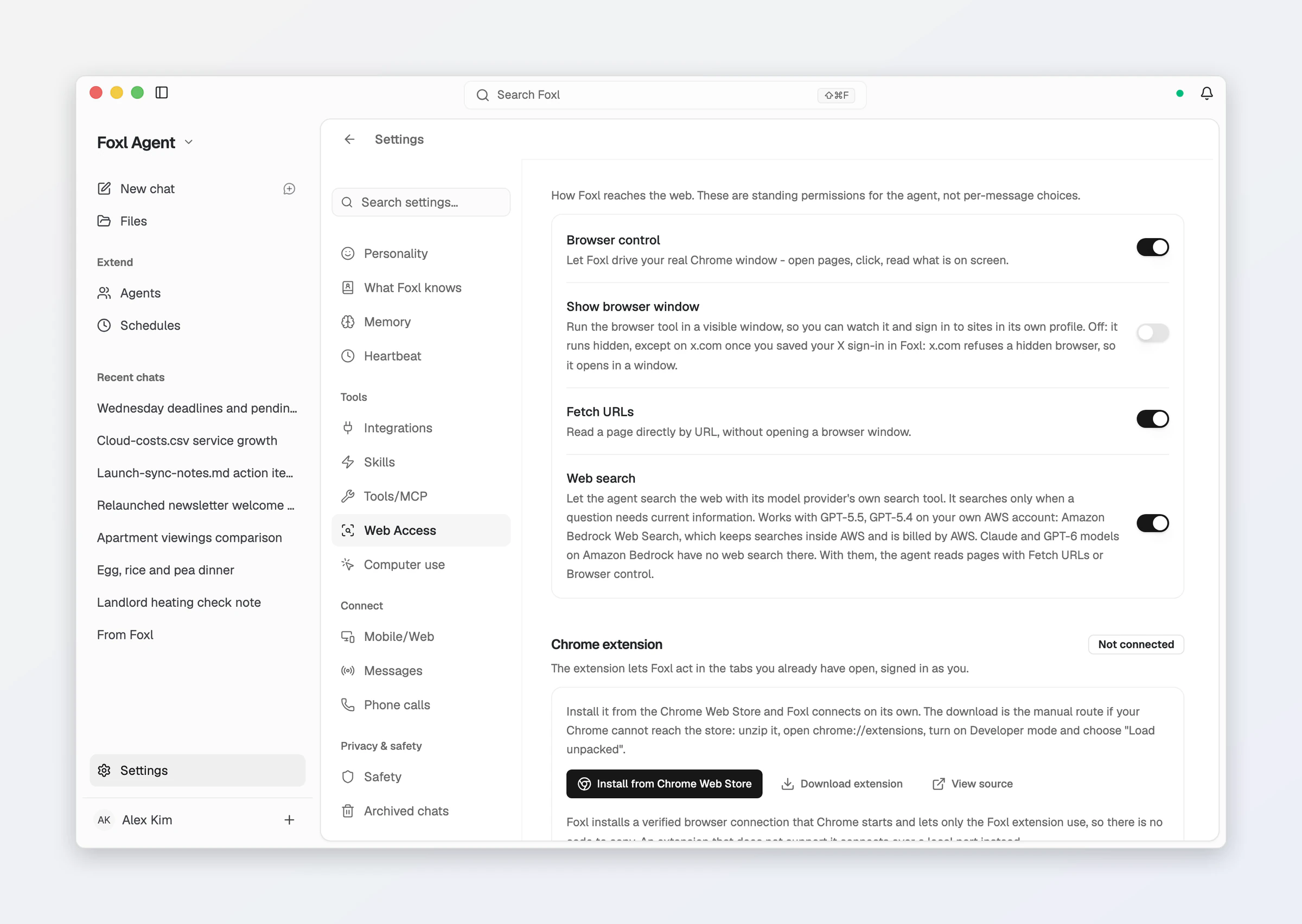
Open the Foxl listing on the Chrome Web Store and click Add to Chrome. Inside the app the link lives under Settings > Web Access, on the Chrome extension card, which also shows whether the extension is connected.
The extension is its own project (foxl-ai/browser-extension, Apache-2.0), not a folder inside the desktop app, so there is nothing to point Chrome at locally. See Chrome Extension for the manual "Load unpacked" route, which is there for a Chrome that cannot reach the store.
The extension checks the desktop's version when it connects and asks you to update a desktop older than 0.6.5.
Web Access
Everything about how Foxl reaches the web is one pane, Settings > Web Access, and its switches are standing permissions rather than per-message choices: Browser control (turns the browser and browser_extension tools on or off together), Show browser window (the browser tool's window, hidden by default), Fetch URLs (the web_fetch tool), Web search (the model provider's own search, where it has one - see Agent Tools), the Chrome extension card (Connected or Not connected, with the Web Store link, the manual download and the source), Allowed domains, and Sites Foxl never signs in to (the sites you named in a chat, each with a remove button; see Never sign in to a site). It is desktop-only; app.foxl.ai has no local tool server to drive.
Buying something
Your request is the OK. When you ask Foxl to buy or book something on a site, it tells you in the chat what it will buy, how many, the exact total, how it is paid and where it ships, and then takes the step that pays in the same turn. It does not ask you to say yes in the chat, or ask before searching, reading or filling in a cart you asked for. Anything you did not ask for, or a total that changes, asks again. When a site offers Add to cart, Foxl uses it rather than Buy now or Buy it again, so the checkout's button is the one step that pays. Afterwards the chat shows a receipt line ("... not asked (Settings > Safety)") and what the site said (below), and Foxl sends a notification, "Foxl bought something on (site)". To approve each purchase on Foxl's card first, turn on Settings > Safety > Purchases > Ask before purchases. Sending money or trading always waits for your OK: on Foxl's card in the browser, and in the chat when Foxl does it any other way, for example by controlling your screen.
The pay card. With Ask before purchases on, the step that orders, pays or books asks on its own card, and so does a subscription, a plan change, a refund or a cancellation with Settings > Safety > Purchases > Ask before subscriptions, plan changes, refunds and cancellations on. The card shows the amount in large type, the site, how long it waits for you and the button it will press, with Approve and Not now; tap the button's row to see the rest of the step. An order paid with a gift card, a balance or points shows each amount ("Order total $12.21 · Gift card -$12.21 · Total charged $0.00") and leads with what it spends, not the $0.00 left to charge. Once you approve it says Approved, and Paid after the step that pays has run. The same card appears in the desktop app's chat and at the top right of its window, on an iPad, in the iPhone and Android apps and in a phone's browser.
What the site said. In chats you start in Foxl on your computer, once a purchase, a booking, a subscription or a plan change has run, whether you approved it on its card or it ran without asking, Foxl reads the page it left and shows what it said under the reply: Order placed, Paid or Booked, with the site's own order or confirmation number only when the page shows one, Submitted when the page moved on without one, and Not sure when Foxl could not tell, with a reminder to check the site before trying again. It lists the items, or the booking's time and party, as the page writes them, and when the page was read.
Cancel from the card. The card carries Cancel order or Cancel booking, Cancel subscription after a subscription and Undo plan change after a plan change, each saying it works only if the store still allows it. Pressing one asks Foxl to do it in that chat. A cancellation, a return or a refund gets its own card once the site's page says so in its own words: Cancelled, Return started (with Withdraw return) or Refunded, with the order or booking number when the page shows one.
Finish it yourself on the site. When the next step is yours, for example buying a prepaid parking pass or an item on the site's own page with your own account, Foxl puts a card under its reply: the page's title, the price, times and conditions exactly as the page writes them, when Foxl checked it, and Continue on (site), which opens that exact page on the phone or computer you are reading the chat on. Foxl first opens the page without your sign-in, so a page that needs you to sign in says so, and so does a page Foxl could not check. The card buys, books and pays for nothing: you do that on the site. When the page's times are in another time zone than your device, the card says which. On a computer, On your phone shows the page as a QR code for your phone's camera. Once you have opened it, I finished and It didn't work tell Foxl in the chat how it went; Foxl takes that as your word, not as the site's confirmation.
Security
Browser automation is powerful, so Foxl includes several safety measures:
- Sensitive site blocking, off by default: Foxl reaches every site until you ask it not to. Turn the filter on in Settings > Web Access > Allowed domains and it blocks banking, payment, crypto-exchange and tax or government domains (US and Korean); that panel shows how many are blocked and takes the domains that should be allowed through anyway. With the filter on, every address the
browsertool is told to open is checked the way the browser reads it, including each command in abatch, anddata:andjavascript:addresses are refused; links and redirects the page itself follows are not checked. Your choice, and the domains you add, are remembered across restarts and updates. The blocklist itself can be edited through the/api/security/domainsAPI. - Visual feedback: While the agent works in a tab, the Chrome Extension shows a glowing border and a Stop Foxl button there, and outlines an element it clicks from the snapshot for a moment. Stop Foxl ends the run.
- An ordinary purchase goes ahead, and one you cannot take back asks first: in the agent's browser and in the Chrome extension, a click, an Enter or a page script that orders, pays or books ("Place order", "Pay", "Buy now", "Confirm booking", a "Reserve" or "Book" shown with a price, and the same buttons in the other nine languages the app speaks) runs as your other rules say, with no card of its own. It shows its card first, whatever Ask before purchases says, when the page says it cannot be undone (a final sale, no refund or no free cancellation, instant or digital delivery, a gift card), when the chat opened another site or read text from outside the chat before it (a site it reached only through a link on a page is not counted yet), when it comes from someone else's channel thread or a run nobody is watching, when the total is above a limit you set in your own words ("up to $80"; the card's step row says by how much), when the amount is higher than one you allowed, or when Foxl's last purchase step on that site reported an error and the order may already have gone through. So does an Enter in a checkout form's field, such as a card number or security code the agent has just typed; a field is judged by the form it is in, so typing into a site's search box is never treated as a purchase, even when the page shows a price or a "Buy it again" button. Afterwards the chat shows a receipt line ("... not asked (Settings > Safety)") and the order card (see Buying something), and Foxl sends a notification that names the site; a step that reported an error sends none, and its receipt line says to check whether it went through. Turn on Settings > Safety > Purchases > Ask before purchases (off by default) to be asked each time, even with auto-approve on: the prompt names the button's own words, the website and the total the page shows, and a step that opens another page and then clicks or presses Enter in one go names the site of that new page and shows no total.
- Subscriptions, plan changes, refunds and cancellations ("Cancel subscription", "Request refund", "Start a return", "Change plan", "Cancel order", a "Subscribe" shown with a price) run the same way, without a card, and a subscription or a plan change gets the same receipt line, order card and notification. A cancellation, a return or a refund gets a card that says what the site confirmed (see Cancel from the card). A subscription or a plan change shows its card first in the same cases as a purchase: its page says it cannot be refunded or cancelled, the chat opened another site or read text from outside the chat before it, it comes from someone else's channel thread or a run nobody is watching, or its price is above a limit you set. A cancellation, a return or a refund spends nothing, so it shows its card first only when it comes from someone else's channel thread or a run nobody is watching, or after the chat opened another site or read text from outside the chat. Turn on Settings > Safety > Purchases > Ask before subscriptions, plan changes, refunds and cancellations (off by default) to be asked first every time.
- A step Foxl cannot tie to one button: a click, a key press or a script Foxl cannot tie to one control, on a page that shows a pay, order or booking control, runs without asking too. It shows its card first in the same cases as a purchase by its own button, judged on what the page shows: the order's own form says it cannot be undone, the chat opened another site or read text from outside the chat before it, the step comes from someone else's channel thread or a run nobody is watching, or the page's total is above a limit you set. A button Foxl cannot name can still be a pay button: turn on Settings > Safety > Purchases > Also ask when Foxl cannot tell which button a step presses (off by default) to be asked about it. With it on, a click by a ref such as @e12 asks nothing when the page shows no price, pay or booking button, card field or transfer. A payment behind a generic "Continue" or "Confirm", an icon-only button or a card form inside a payment provider's frame is not recognized. If such a step did place an order or a booking, the chat shows its order card once the site's page shows a new order or confirmation number beside the order's total; a step that ordered nothing adds nothing.
- Pages Foxl could not read: a step on a page Foxl could not read or could not tie to a control by its words (a ref or selector it could not place, a click inside a frame, a step on a page it never read, a ref, a selector or an Enter in a step that first opens another page), and a step whose own words could pay or book, such as "Book now", a partial match of "Place" or a selector like
#placeYourOrder, runs as your rules say without asking in your own chat and the subagents it starts while Settings > Safety > Pages Foxl could not read > Go ahead without asking is on (the default). Nothing on such a page tells Foxl what the step does, so in a run nobody is watching (a schedule, a mail trigger, the heartbeat) and in someone else's channel thread it shows its card first. When reading the page failed, Foxl reads it once more first, then acts. A step that turns out to have ordered or booked gets its order card the same way, once the page shows a new order or confirmation number beside the order's total; when Foxl could not read the page before the step at all, or the step first opened another page, it cannot tell a new number from one the page already showed, so it shows no card. Turn on Settings > Safety > Pages Foxl could not read > Also ask in your own channel threads (off by default) to be asked about such a step in your own channel threads too, or turn Go ahead without asking off to be asked about every one. - A purchase made with a command: when the agent sends a site's form with a shell command instead of the browser (
curl,wget, HTTPie or Invoke-WebRequest), and the request writes and names a checkout, an order, a payment, a booking, a subscription or card details, its card comes first every time, in every run. Foxl never sees that site's page, so it cannot read whether the order can be undone or what it costs, and it has no order card to cancel it from. The card shows the whole command, says it sends the request outside the browser, and offers no Always allow. A request to your own computer (localhost) and one that names no money run as your rules say. - No Always allow on a purchase: Allow covers that one step. No card offers Always allow purchases, and a limit saved by an earlier version of Foxl no longer skips a card. Only the Foxl window on your computer can turn a Settings > Safety > Purchases switch, or Also ask in your own channel threads, off; turning one on works from your phone or the web too. When a step in a scheduled or channel run asks and no Foxl window is open to ask, nothing is clicked and the run's result says it needs your OK.
- Sending money and trading always ask: Send money, a wire or a transfer between accounts (a bank's plain Transfer beside an account number and an amount included), and buying or selling shares or crypto (a broker's Place order on a trade ticket), in all ten languages, even with auto-approve on. The card names the amount and the site in the chat, in every Foxl window and on your phone, and nothing is pressed until you answer. After you allow it, Foxl reads the page again, and a changed site, button, amount or account number presses nothing; the next attempt asks with what the page shows then. A scheduled or channel run waits for your answer on your phone. No Always allow or Don't ask again covers them. A bank's generic Confirm or Continue is not recognised yet.
- Card and ID numbers are typed at once: text the agent types into a page that carries a card number, a Korean resident registration number or a US Social Security number goes ahead, because nothing leaves until the form is submitted. With Ask before sending a card or ID number on in Settings > Safety, it waits on an approval prompt first, which names a card or an SSN by its last four digits only, and a resident registration number by its kind, with no digits.
- Action transparency: Every step shows in the chat as it runs, screenshots included, and each
browsercommand leaves a line in Settings > Logs. - A pinned, reviewed agent-browser: the
browsertool never runs whatever agent-browser version was published last; it moves only with a Foxl release.
Platform Support
The browser tool works on macOS, Windows and Linux alike, with a Foxl-only profile under ~/.foxl/browser-profile. It needs a Chrome that agent-browser can start (on Windows, Google Chrome or Brave); agent-browser itself ships inside Foxl. The browser_extension tool works in whichever Chrome (or Chromium-based browser) you installed the extension in - see Chrome Extension.