
Gmail
Let Foxl send email from your Gmail, and read it if you choose: what it can do, connecting it, removing it.
Connect Gmail and Foxl can send email from your own Gmail address when you ask it to: a summary of a meeting, a report from a schedule, a reply you dictated. By default it is send only. Foxl cannot read, search or delete your mail, and nothing it has been given lets it.
Where the connect screen offers it, you can also let Foxl read your mail, so it can find and summarize messages for you ("what did my landlord say last week?"). Reading is off unless you turn it on, and the switch appears only when reading is available for your Foxl account.
To have Foxl read your Gmail and clean up your inbox without this connection, give it a Gmail app password in the chat instead: see Mail from Gmail, Naver, Daum, Kakao, iCloud and Yahoo.
Google has verified Foxl for sending. Reading is new: until Google finishes reviewing it, Google may show a "Google hasn't verified this app" screen when you connect with reading on; that screen is Google's, and continuing past it is your choice.
What Foxl asks Google for
| Permission | What it allows |
|---|---|
Send email on your behalf (gmail.send) | Sending a message from your account. Google's narrowest Gmail permission that can send |
View your email messages and settings (gmail.readonly) | Only if you turn reading on. Searching and reading your messages. Foxl does not read your settings and cannot change anything with it |
Your email address (openid, email) | Showing which account is connected |
That is the whole list. If Google's screen grants Foxl anything wider than you chose, or no Gmail permission at all, Foxl revokes what it was given and connects nothing.
Connect Gmail
You need the Foxl desktop app, signed in to your Foxl account.
- Open Settings > Tools > Integrations and choose Gmail.
- If you see Also let Foxl read your mail, turn it on only if you want Foxl to read your mail. The text above it changes to say what reading does.
- Select Continue to Gmail. Your browser opens Google's sign-in.
- Choose your Google account and allow the permissions you want.
- Return to Foxl. The Gmail row shows the connected address.
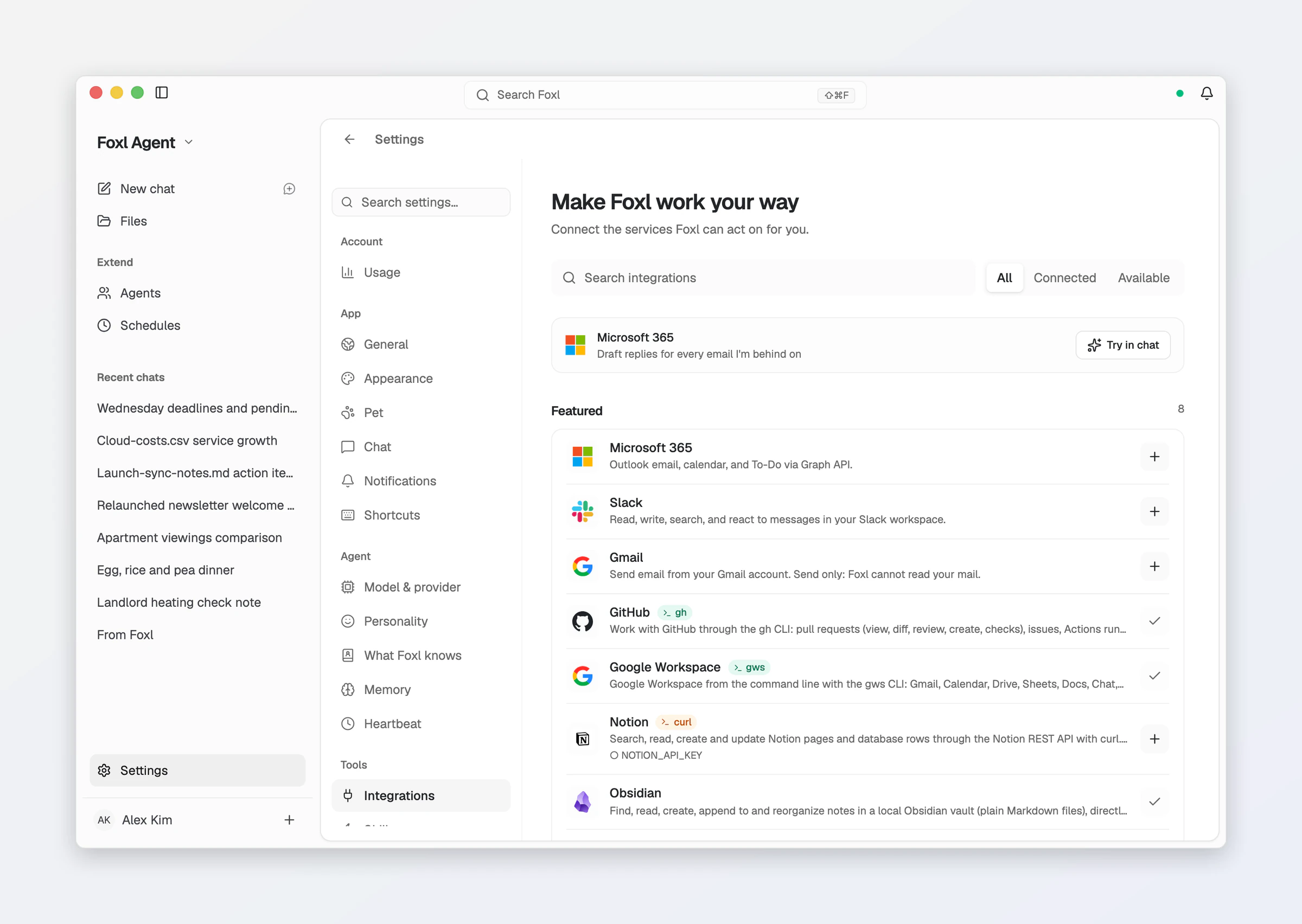
Then ask in a chat or a schedule, for example: "Email me a summary of today's meeting notes."
A mail that carries a card number, a Korean resident registration number or a US Social Security number is not sent without asking, even with auto-approve on: it waits on an approval prompt that names a card or an SSN by its last four digits only ("This sends a card number ending 4242") and a resident registration number by its kind, with no digits. Allow sends that one mail. In chats you start in Foxl on your computer Always allow sending this to (recipients) lets later mail carrying the same card or Social Security number (by its last four digits) to exactly those recipients go out without asking (a resident registration number asks every time); Settings > Safety > Always-allowed sends removes it. A schedule that would send one waits for the same answer; when nobody can be asked, the mail is not sent and waits in the run for your OK for 12 hours, and Approve sends it once.
Reading mail (optional)
With reading on, the gmail tool gains three actions:
- search - Gmail's own search syntax (
from:,subject:,is:unread,newer_than:7d...), at most 25 messages per search, each with its date, sender, recipients, subject, a short snippet and its labels. - read - one message: its headers, its text (up to 20,000 characters) and the names and sizes of its attachments. Attachments are not downloaded.
- reply - answers a message you read, in its Gmail thread. It needs sending allowed too.
The connection never deletes, moves or changes your mail, and reading a message does not mark it read.
When Foxl reads. When a request calls for it: in a chat (the Foxl Notes assistant included), in a schedule you set up, or in the morning briefing and check-ins if you turn them on. A message that reaches Foxl through a channel you connected, such as iMessage, Telegram or Slack, from you or from anyone you allow there, can read mail too, and its reply, which can quote your mail, goes back to that channel. To keep Gmail out of channel requests, set Settings > Safety > By where a run comes from > Channels to Read only.
Where what it read goes. Reading happens on your computer, directly with Gmail. What Foxl reads goes to the AI model that handles that request, under that provider's terms, the same way as anything else you share in a chat, and becomes part of that conversation. When you use Foxl from your phone or app.foxl.ai, the conversation passes through Foxl Relay, which does not store it.
Mail is treated as data, not instructions. Anyone can send you an email, so Foxl removes invisible characters from what it reads and tells the model that the content was written by its senders and is not to be followed. That is advice to the model, not a guarantee. Auto-approve all tools (Settings > Safety) is on for a new install, and while it is on Foxl can send mail without asking you; turn it off to approve every mail before it leaves.
Where the access is kept
- On your computer. Google's access tokens are stored encrypted in Foxl's local database.
- Foxl Relay holds no token. Google requires a credential that Foxl keeps off your computer for the sign-in and for renewing access about once an hour, so those two requests pass through Foxl Relay, which adds it and stores nothing.
- Sending and reading go straight from your computer to Gmail.
Delete what Foxl read
What Foxl read is part of the conversation it was read in, stored on your computer. Delete the conversation, then delete it for good (Delete permanently, Empty trash, or the trash's 7-day cleanup), and its copy of your mail goes with it. A schedule, the morning briefing and a check-in also post their result in the From Foxl chat: delete that message there too. A reply sent to a channel stays in that channel, and anything Foxl saved to memory from your mail stays until you delete it in Settings > Memory. Foxl on your phone or at app.foxl.ai keeps an encrypted copy of your recent chats, and drops a deleted one the next time it syncs with your computer. Disconnecting Gmail stops any further reading; it does not delete conversations.
Disconnect
Open Settings > Tools > Integrations, choose Gmail, then Disconnect. Foxl asks Google to revoke the access and deletes its copy. If Google does not confirm, Foxl says so. You can always remove the access yourself at myaccount.google.com/connections. To keep sending but stop reading, disconnect and connect again with reading off.
Google also ends the access on its own when you change your Google password, when it goes unused for six months, or when you remove it there. Foxl then shows Sign-in expired on the Gmail row; disconnect and connect again to keep using it.
Privacy
Foxl's use and transfer to any other app of information received from Google APIs will adhere to the Google API Services User Data Policy, including the Limited Use requirements. Foxl does not use your mail for advertising, does not sell it and does not use it to train AI models. See the privacy policy.
Phone Calls
Foxl phones someone for you through your iPhone and your Mac - what you need, the approval card, what it says on the call, transcripts, limits and what it costs
Google Calendar and Google Drive
Let Foxl read and change your Google Calendar events, and search and read your Google Drive files, if you choose: what it can do, connecting them, removing them.